
Shopify Tutorial
Shopify Metafields: Complete Guide for Beginners
Shopify gives every product a title, a description, images and a price. Every customer gets a name and an address. For a lot of stores, those fields aren't enough.
Shopify metafields are how you add your own. Most store owners stop at "a new field that shows up on the product page", but metafields do a lot more than that. They can hold information only your staff sees, filter your products and orders, decide what an automation does, and show up on your internal staff notifications.
In this post, we'll go over what metafields are, what problem they solve, how metafield definitions work, everything you can do with metafields once they exist, and how to edit them in bulk.
Let's go!
What Are Shopify Metafields?
Shopify metafields are custom fields you add on top of the default fields of Shopify's built-in data models.
Those data models are the things Shopify already stores for you: products, variants, collections, customers, orders, and more. Each one has its own set of default fields. A product has a title, a description, images, a price and taxes. A customer has a name and an address.
A metafield is a field you add next to those. You can add them to products, variants, collections, customers, orders, draft orders and more. The full list is in your admin under Settings > Metafields and metaobjects.
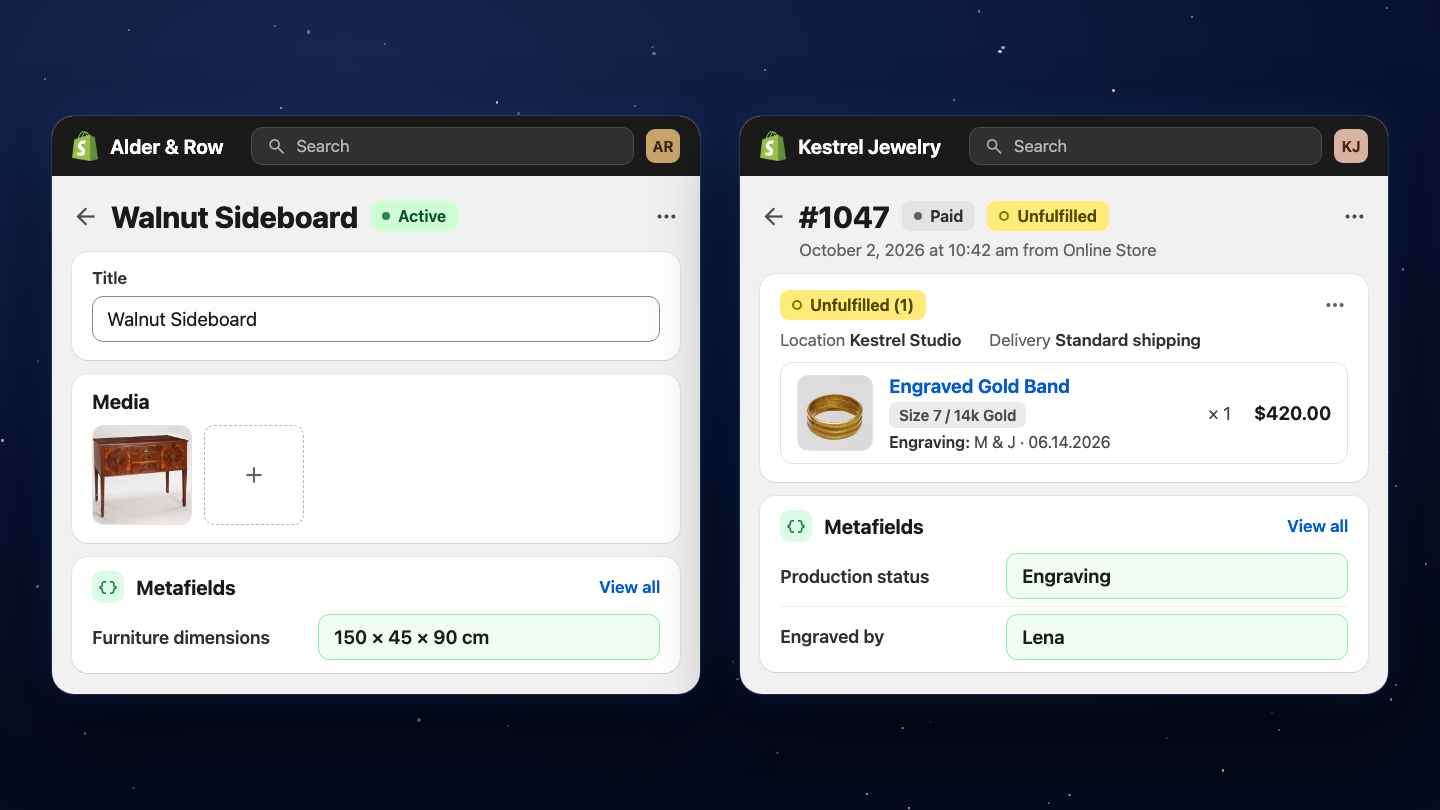
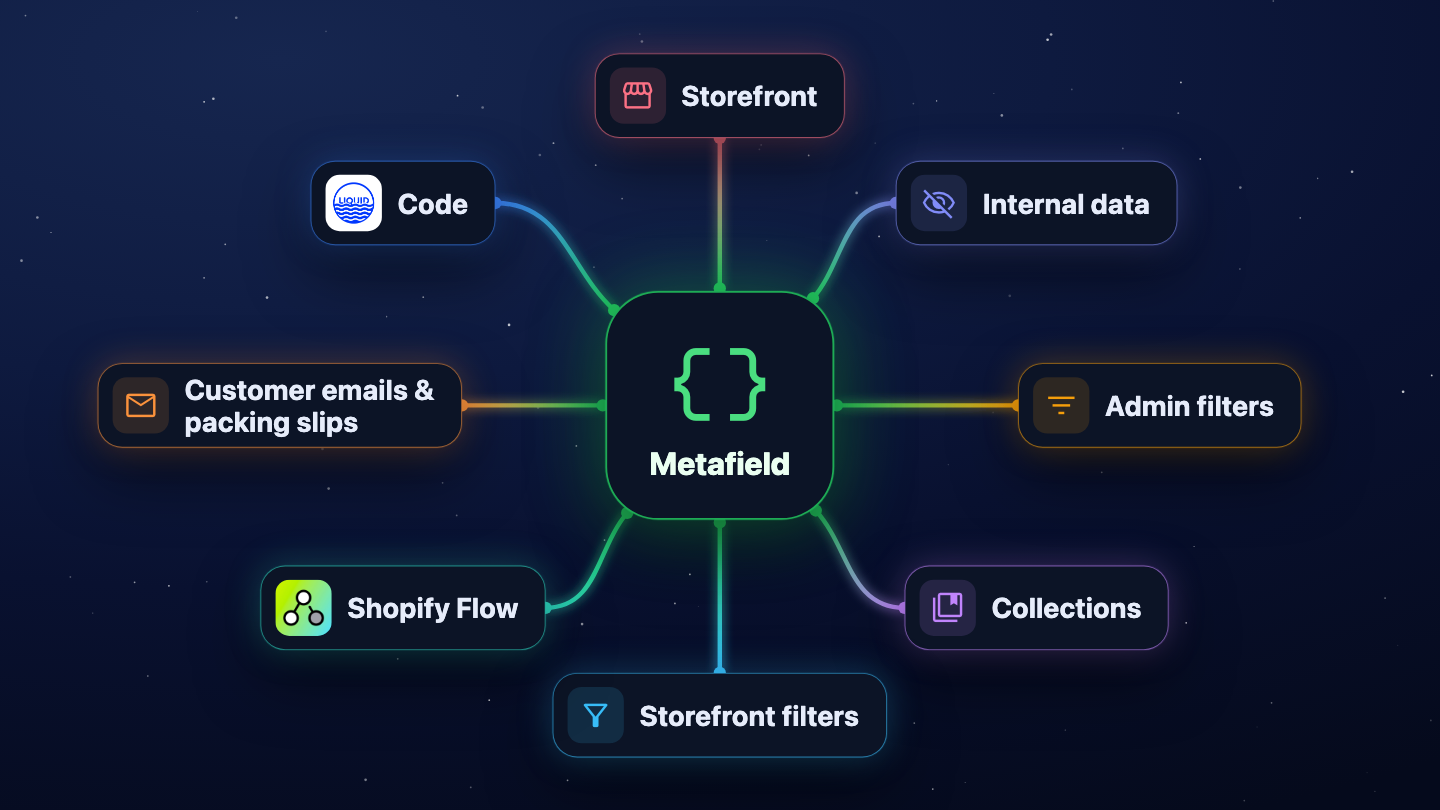
Once the metafield is created and a value has been added, you can use that value in many places. A few examples:
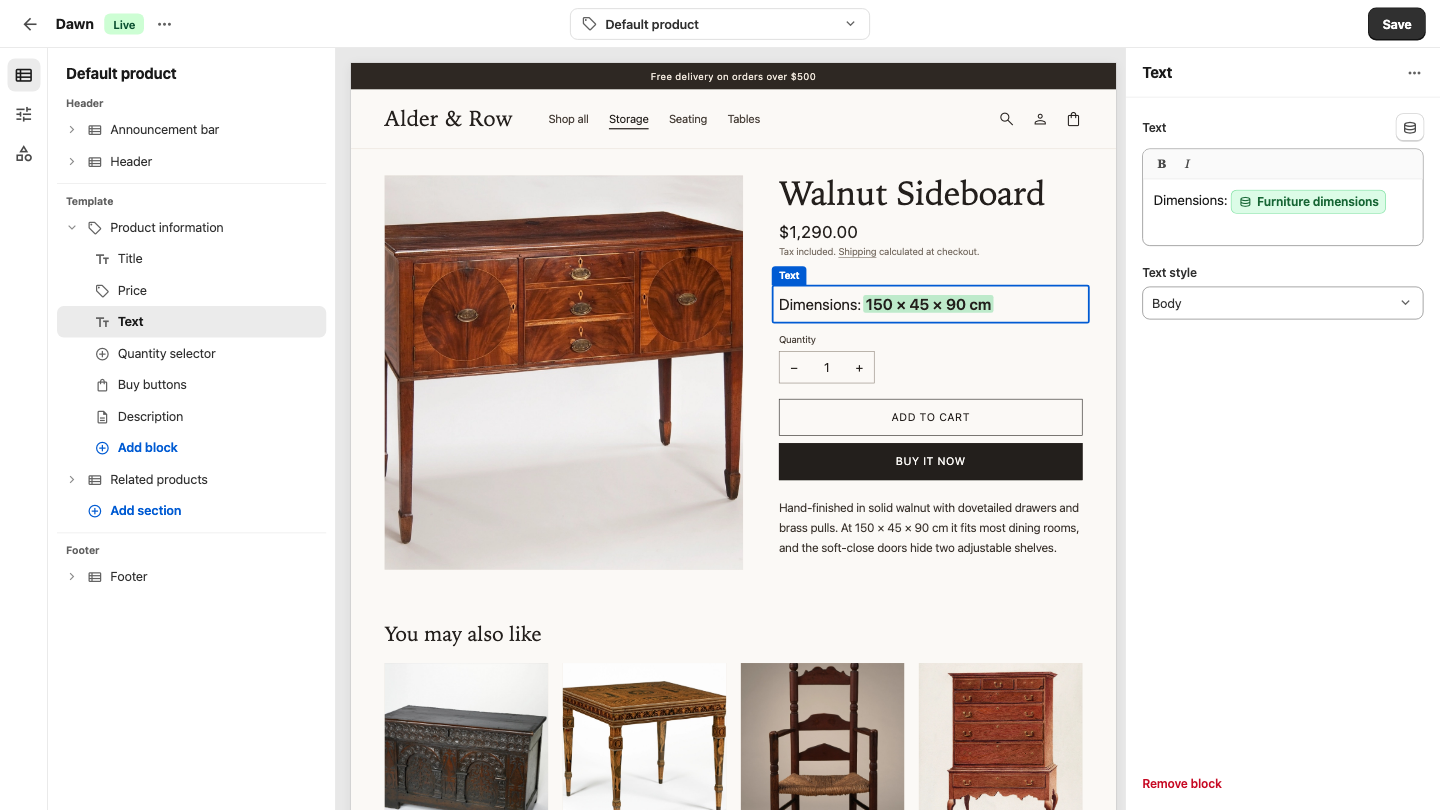
- Show a product's Furniture dimensions on its product page
- Store a customer's Loyalty tier if you run a loyalty program
- Use a metafield value as a condition in Shopify Flow (do x-action if the customer is of Gold loyalty tier)
- Record the Engraving status of a personalized order
- Show Related products on a product page
What Problem Do Shopify Metafields Solve?
Shopify's default fields cover what every store needs. Sometimes, however, they don't cover what your store needs.
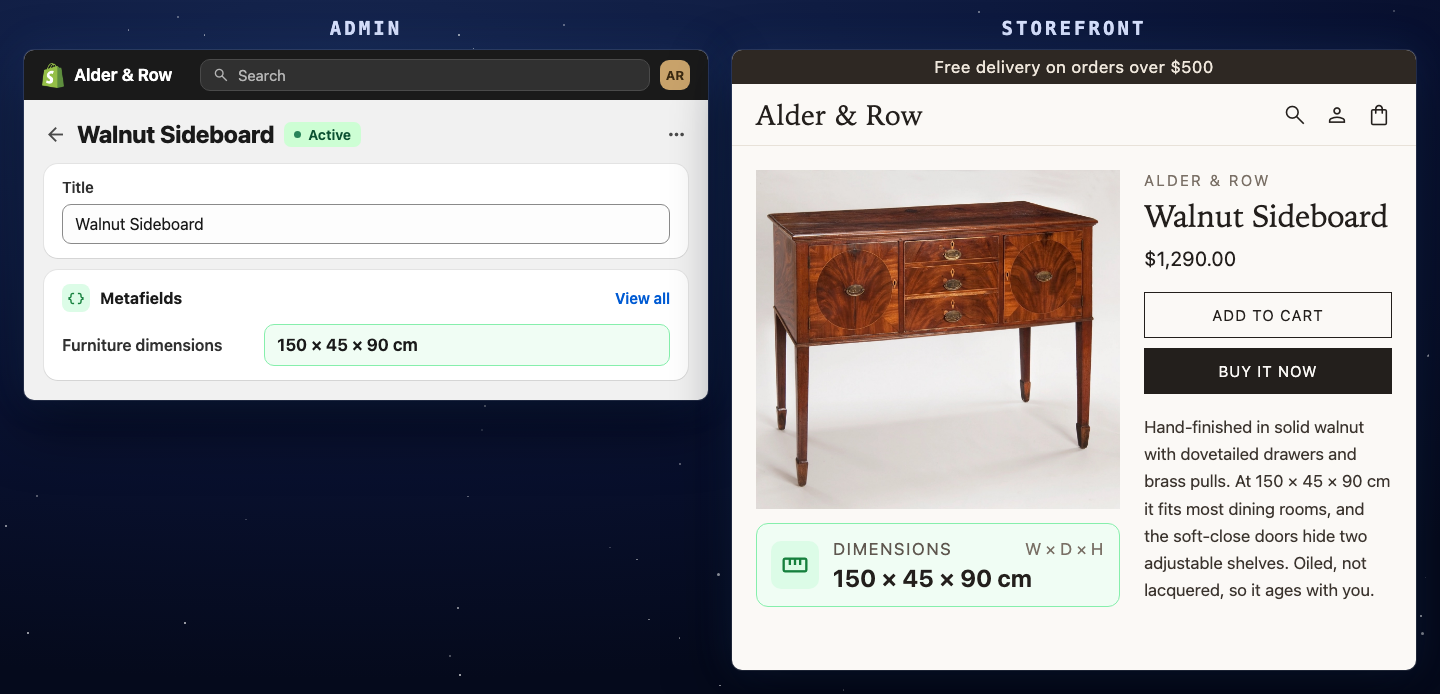
Example 1: a furniture store. Customers keep struggling to find the dimensions of each piece. The dimensions are in the product description, but buried in a paragraph of text.
The store wants to show them separately, so that customers won't have to hunt for them. The problem is that Shopify doesn't have a "Furniture dimensions" field.
So the store creates one as a product metafield, fills it in with the dimensions for each product, and shows it on the product page in its own block. Customers can now easily find the dimensions at a glance.
Example 2: an engraved jewelry shop. Every order goes through engraving, a quality check and packing, often by different people. Shopify's order page has no fields for tracking that workflow, so the owner adds order metafields that staff fill in as the order moves along:
| Order metafield | What it's for |
|---|---|
| Production status | Where the order is in the workshop |
| Engraved by | Which artisan did the work, for accountability |
| Engraving proof approved | Confirms the customer signed off on the text and font |
| Target ship date | The internal deadline, which may differ from what the customer sees |
| QC notes | Issues like "Minor scratch on clasp, replaced chain" |
Now the whole workflow for that order lives on the order page in the admin, where staff already work.
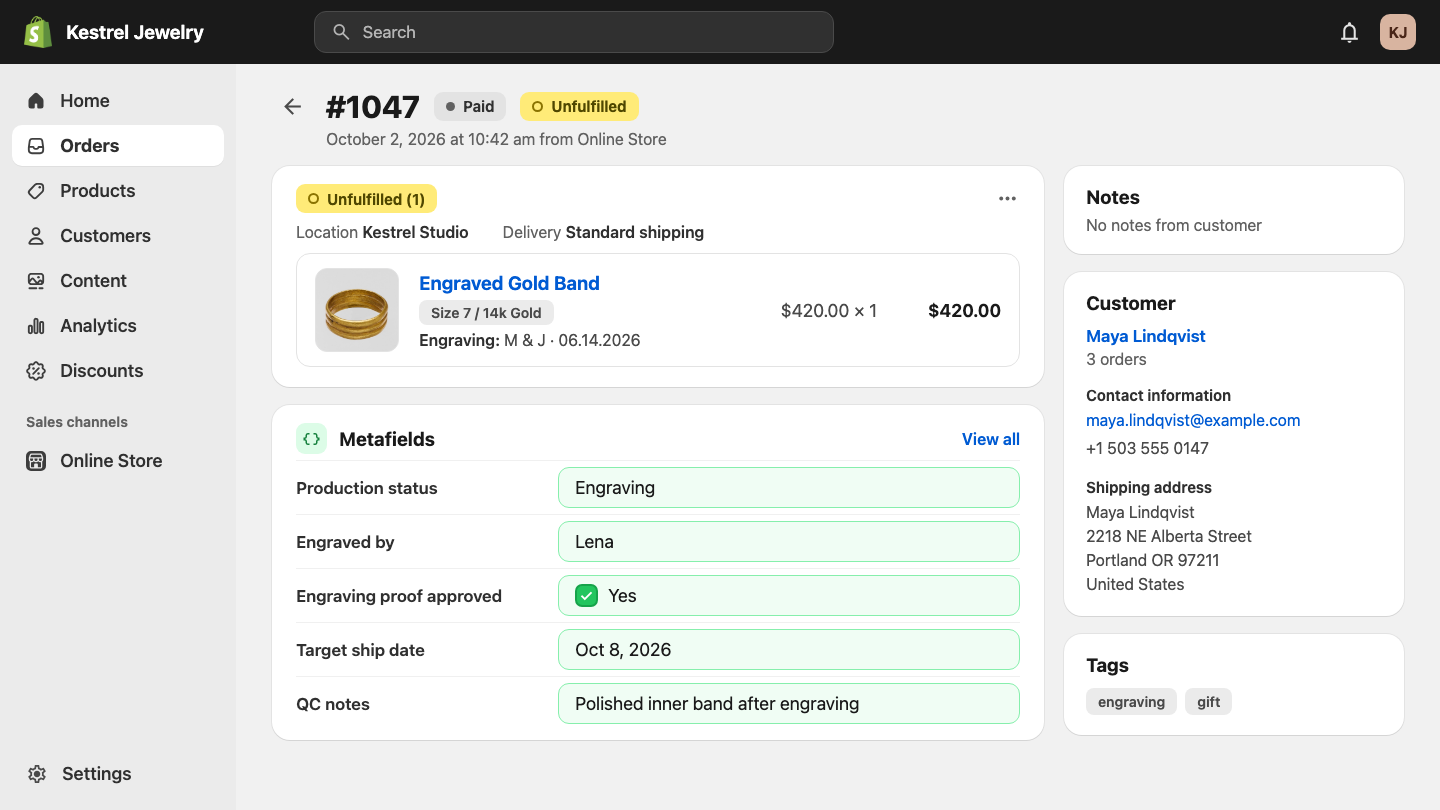
Notice that none of that second example is ever shown to a customer. The same pattern fits a lot of businesses. A bakery can track pickup time slots and allergen confirmation. A B2B store can record PO numbers and approval status. A store with fraud concerns can log manual verification checks.
We'll go through every way of using a metafield later in this post. First, here's how one gets created.
Metafield Definitions: The Rules Behind Every Metafield
You don't create a metafield directly. You create a metafield definition, and the definition creates the field.
A metafield definition is the set of rules for a metafield's value. It decides:
- What kind of value the field holds, called the metafield type (single line text, multi-line text, file, date and time, and so on)
- How many values it holds, one or a list
- How the field is identified, called the namespace and key
- Any other rules that come with the type or the resource
Once the definition is saved, a new field appears on the page of that resource in your admin. That field is the metafield, and clicking it lets you save a value.
As of writing, you can have up to 250 metafield definitions in your store.
How to Create a Metafield Definition
- In your Shopify admin, click Settings in the lower left
- Scroll down the left sidebar and click Metafields and metaobjects
- Choose the resource you want the field on, for example Products
- Click Add definition in the top right
Then fill in the rules for the field:
- Name is what the field is called in the admin, for example "Furniture dimensions".
- Namespace and key is the field's unique identifier, for example
custom.product_dimensions. Herecustomis the namespace andproduct_dimensionsis the key. The namespace helps you organize fields, but each namespace and key pair has to be unique. Themes and apps use this identifier to find the field. - Description is optional. Use it for instructions to your staff about what goes in this field.
- Type decides what kind of value the field accepts, like single line text for short text or multi-line text for longer descriptions. A metafield has exactly one type. You'll see the full list when you pick one.
More options appear depending on the type you pick and the resource the field belongs to.
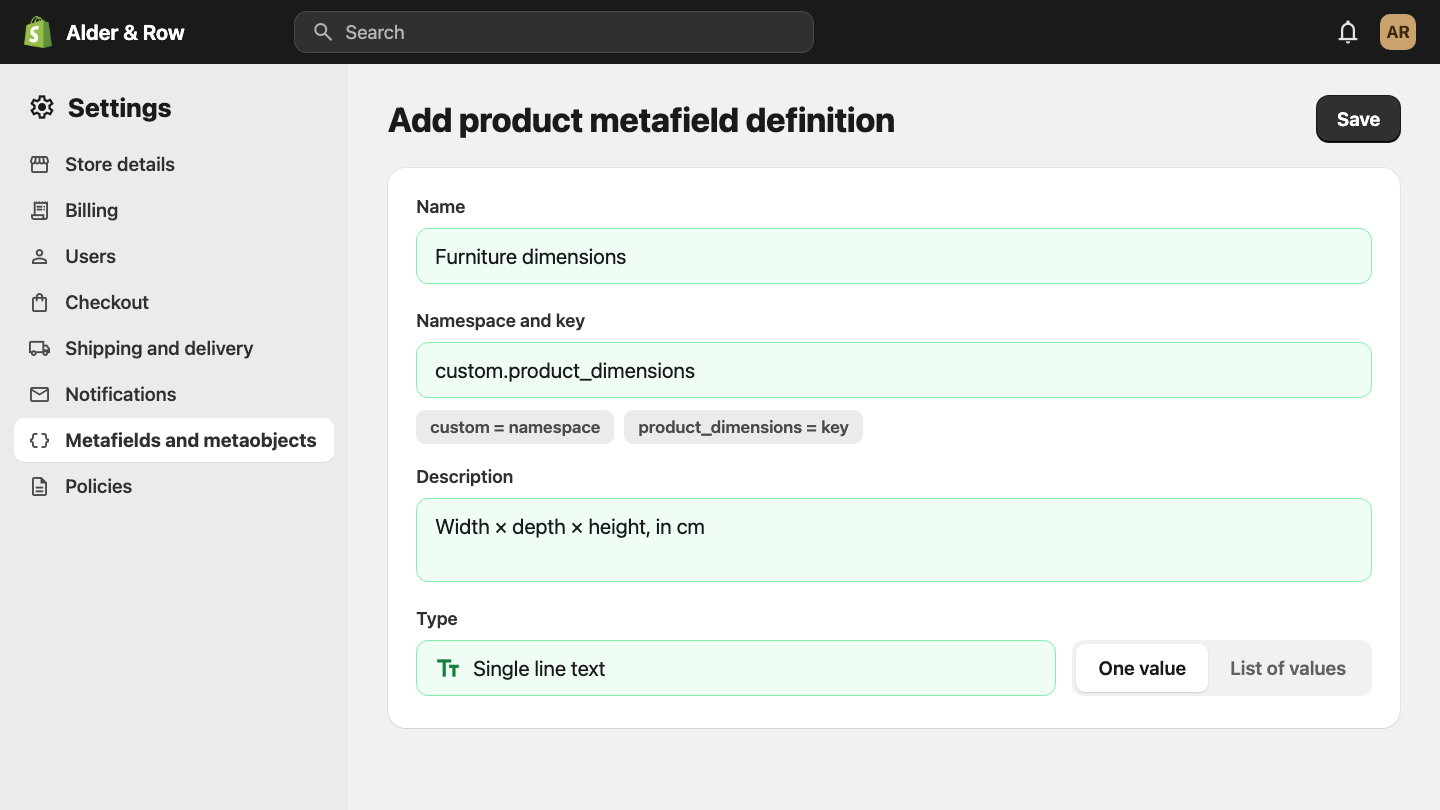
Then, to add or change a value to this new field, open the product (or order, or customer) and edit the field. To remove a value, clear the field.
What You Can Do with Shopify Metafields
This is where metafields stop being "a new field on the product page". Once a value is stored, here's everything you can do with it.
Show Metafields on Your Store
This is the use most people know. If your theme supports metafields, you can show them without code in the theme editor:
- Open the theme editor and add a section or block that supports dynamic sources, for example the Product info section for product metafields
- Click the connect dynamic source icon on a setting
- Search for your metafield and select it
That's how the furniture store puts "Furniture dimensions" in its own block on the product page. See Displaying metafields on your online store for the details.
Store Internal Information
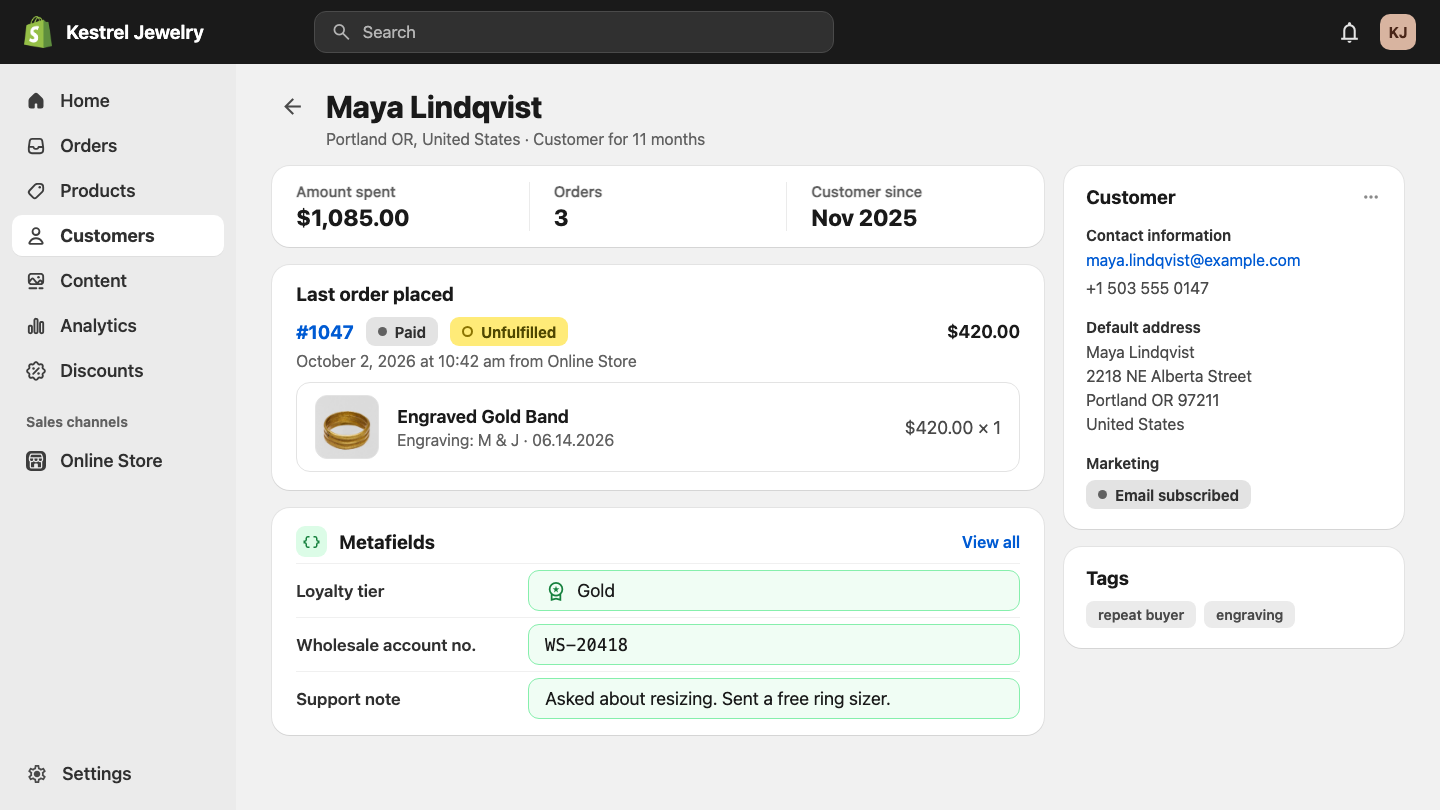
A metafield doesn't have to be shown to anyone but you. The engraving shop's order metafields live on the order page, where staff update them as the order moves through the workshop.
Customer metafields work the same way: a loyalty tier, a wholesale account number, or a note from your last support call, stored on the customer where your team can see it.
Filter Products and Orders in the Admin
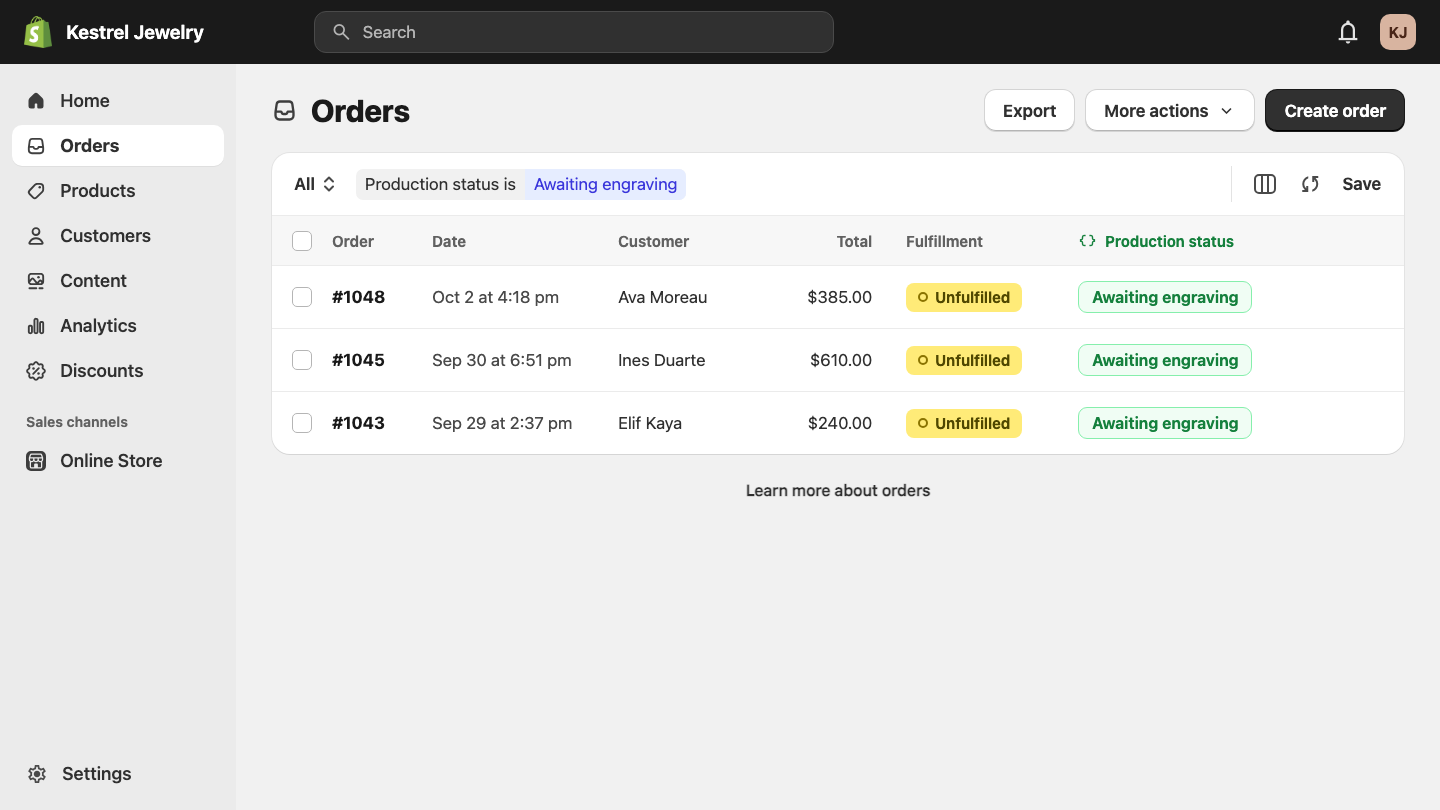
You can use metafields to filter your lists in the admin. Turn it on in the metafield definition first, then use the metafield as a filter.
- Products: search your product list by a metafield value.
- Orders: filter your orders by a metafield value.
Back to the engraving shop: filter orders by "Production status" and you get everything still waiting for engraving.
Use Metafields as Conditions in Automated Collections
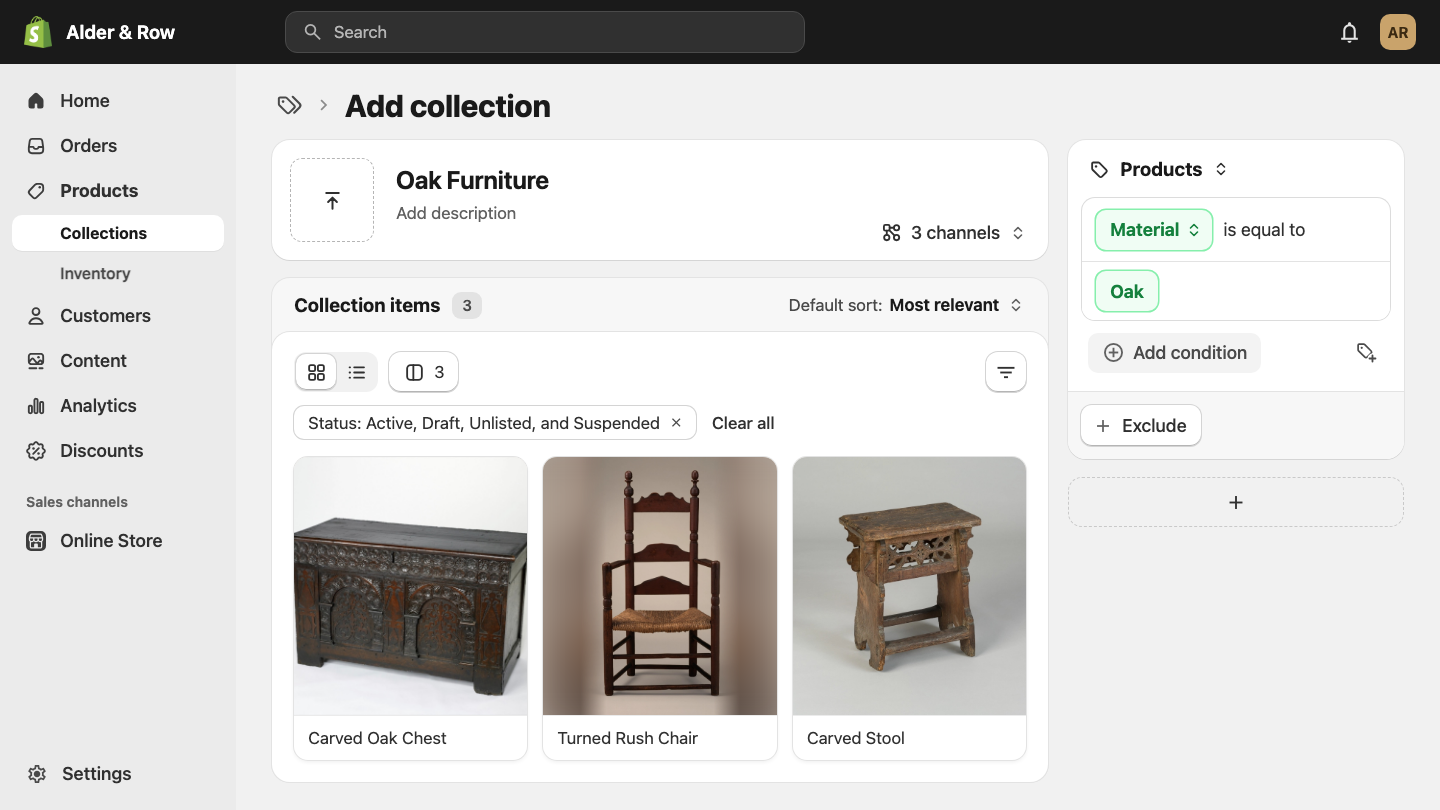
Product and variant metafields can be used as conditions in automated collections, once that's turned on in the definition.
A product tagged with a "Material: Oak" metafield can land in your Oak Furniture collection automatically, with no manual sorting.
Let Customers Filter Your Collections
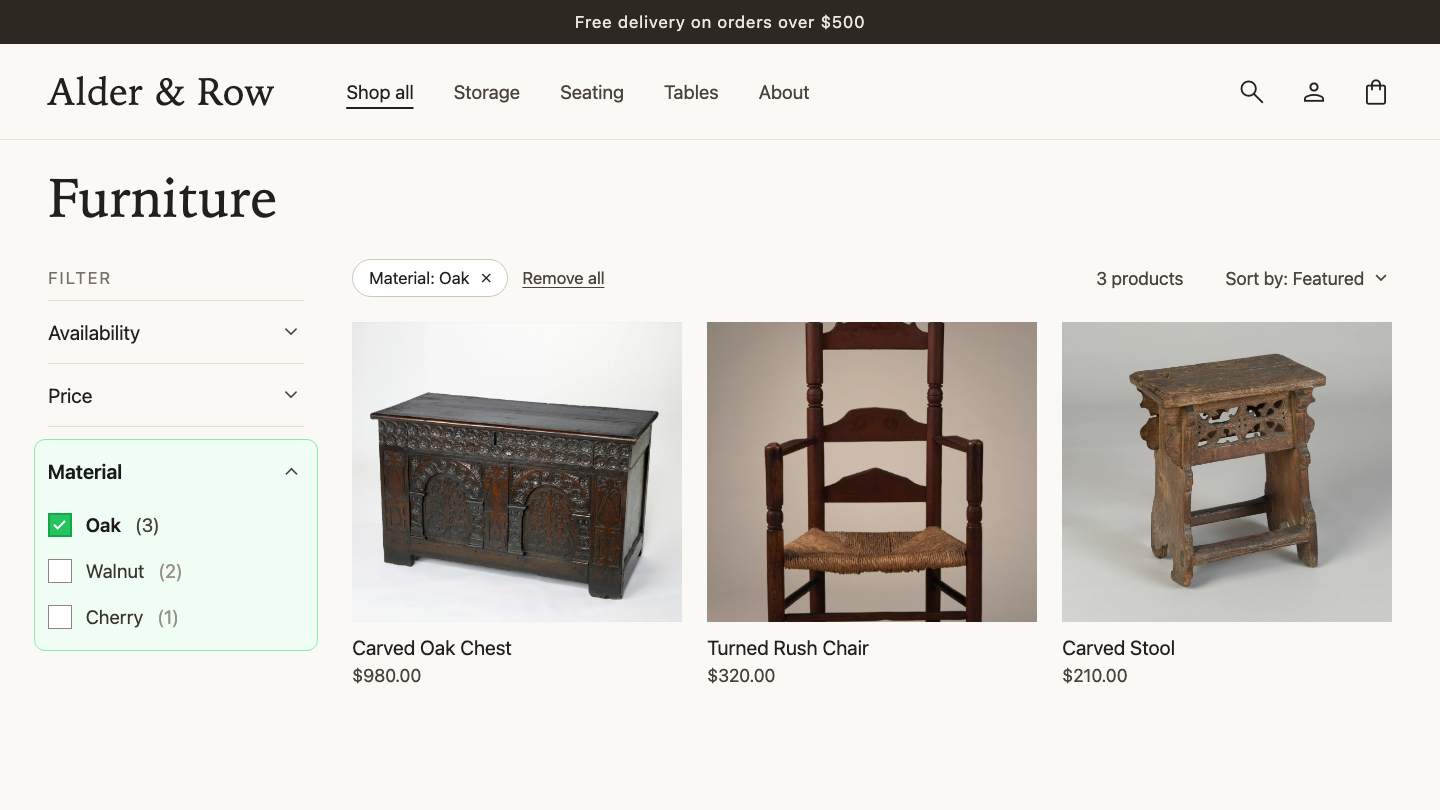
Product, category and variant metafields can be used as filters on your storefront's collection pages:
- Install the Shopify Search & Discovery app
- Go to Filters
- Add a filter and choose your metafield as the source
For product metafields, Shopify's filtering instructions say to turn on Filter on the product list and in the Admin API in the metafield definition.
Automate Metafields with Shopify Flow
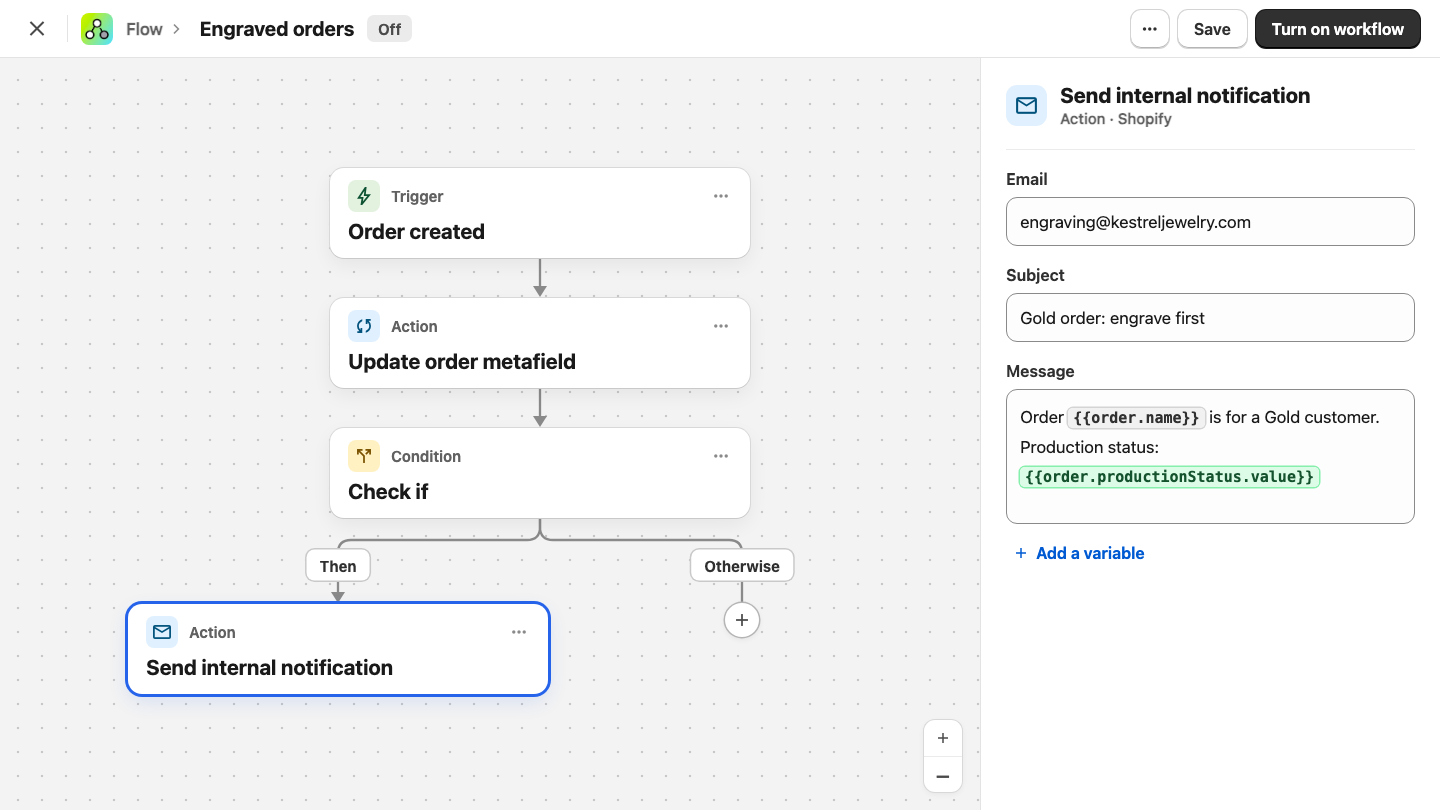
Shopify Flow can read and write metafields, which is how you stop filling them in by hand.
- Update a value automatically with Flow's built-in metafield actions. For anything they don't cover, the Send Admin API request action can do it too.
- Use a value as a condition. Such as: if a customer's loyalty tier is Gold, do this. If it isn't, do that.
- Put a value in an internal email. In Flow's send internal notification action, click Add a variable and pick the metafield.
Add Metafields to Notifications, Packing Slips and Pick Lists
Metafields can also go into the documents and emails your store sends.
Customer notifications, like the order confirmation email, can use:
- Order metafields
- Draft order metafields
- The product metafields of each line item (
line.product.metafields) - The variant metafields of each line item (
line.variant.metafields)
Staff notifications (under Settings > Notifications > Staff notifications) can also access the same metafields.
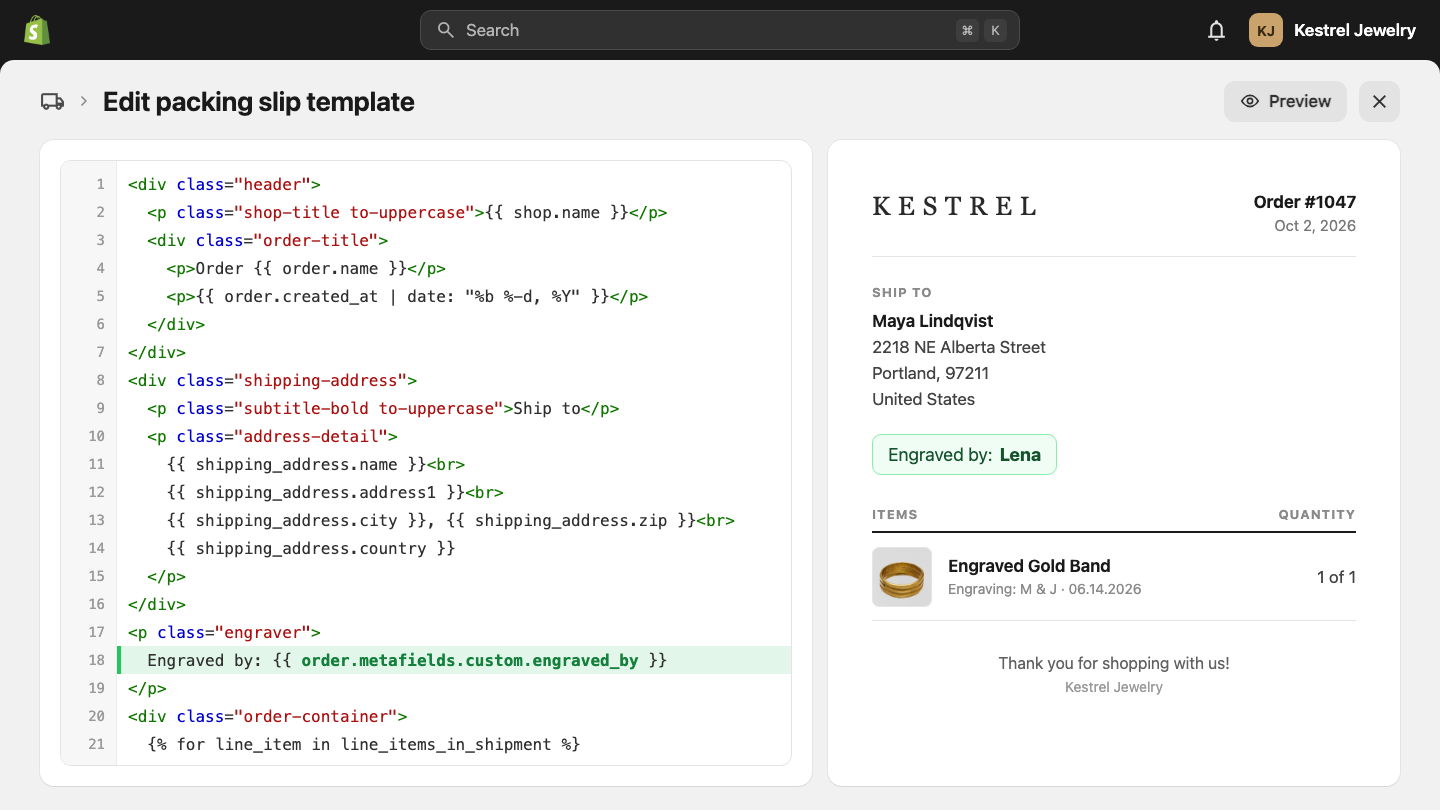
Packing slips can show order metafields. Edit the template under Settings > Shipping and delivery > Templates, and reference the metafield by its namespace and key:
{{ order.metafields.namespace.key }}The Order Printer app works the same way. Its preview won't show the value, but the printed packing slip for a real order will.
Pick lists can show order metafields as a column, both in the Shipping and delivery templates and in Order Printer.
How to Bulk Edit Shopify Metafields
Filling in metafields one product at a time doesn't scale. How you edit them in bulk depends on the resource, because Shopify's tools don't cover every one.
As of writing:
| Resource | Bulk editor | Export | Import |
|---|---|---|---|
| Products | Yes | Yes | Yes |
| Variants | No | No | No |
| Collections | Yes | No | No |
| Orders | No | Yes | No |
| Customers | Yes | Yes | Yes |
| Companies | No | No | No |
A few things to know about the native tools:
- Products in the bulk editor: every category metafield column shows by default. With a varied catalog, you'll be turning a lot of columns off before you can work.
- Products by import: importing a product with the same handle as an existing one overwrites its data, metafields included. That turns this process into: export, change the file, import it back.
- Product exports include product metafields and some category metafields. As of writing, not every category metafield shows up in the export.
- Customers work the same way as products: bulk editor, export, and import, with metafields included.
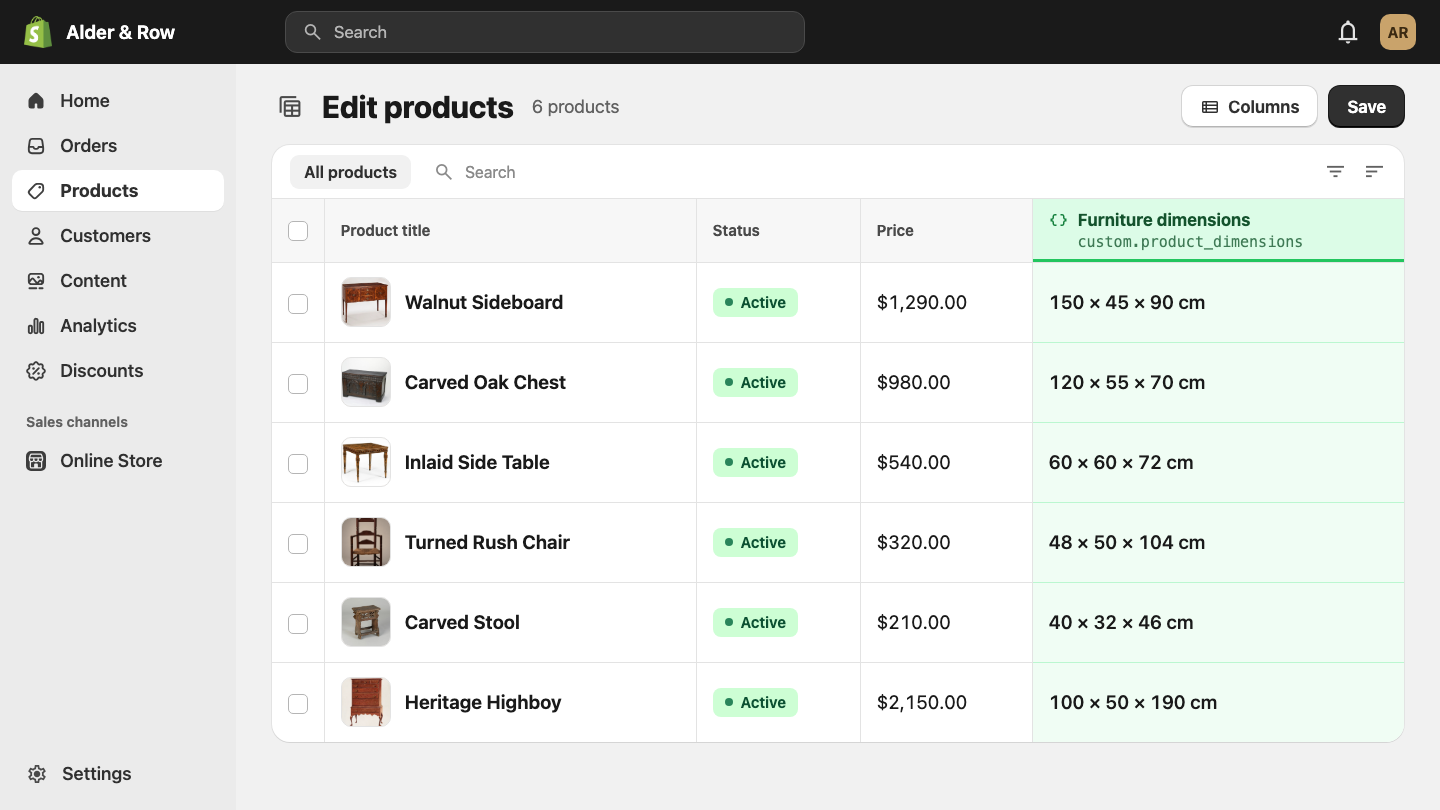
For everything the native tools don't cover, like variant metafields, use an app. Matrixify is the one I'd go with, and its pricing is fair enough for the amount of work you can do.
Bulk Editing Metafields with AI
The Shopify connector in Claude and in ChatGPT can bulk edit, import and export metafields too. On a large store, I'd be careful with it:
- Large changes are hard to check. You can ask the AI to undo a change, but at scale it can hallucinate and get the undo wrong.
- There's no version history. Nothing saves the old values for you to go back to.
- A backup doesn't always help. You can export your data before a big change, but variants can't be imported back.
The best way to bulk edit is the one that leaves you no reason to doubt the result. On a large store, that's the native bulk editor or an app, backed by the app developer's support. For a small edit you can check yourself in a few minutes, AI is fine.
Final Thoughts
A metafield is a custom field on Shopify's data, and it's a lot more useful than the name suggests.
Show it to customers, keep it for your staff, filter by it, build collections on it, automate it with Flow, and print it on your packing slips. It's the same value everywhere.
Start with one. Pick the piece of information your store keeps writing into descriptions or order notes, create a definition for it, and fill it in on a few products. Then look at this list again and see how many other places it can go.
Cheers,
Jan
Shopify Metafields FAQ
What are metafields in Shopify?
Metafields are custom fields you add to Shopify's built-in data, like products, variants, collections, customers and orders. They store information Shopify doesn't have a default field for, such as furniture dimensions or an order's production status.
What's the difference between a metafield and a metafield definition?
The definition is the set of rules: the field's name, its namespace and key, its type, and whether it holds one value or a list. The metafield is the field that appears on each product (or order, or customer) once the definition exists, and it holds the value.
How many metafield definitions can I have in Shopify?
As of writing, the Shopify Help Center says you can have up to 250 metafield definitions.
How do I edit a metafield definition?
Go to Settings > Metafields and metaobjects, choose the resource, and click the definition you want to change. Not everything can be changed: in the admin, the type and the namespace and key are fixed once the definition is saved.
How do I delete a metafield definition?
Go to Settings > Metafields and metaobjects, choose the resource, click the definition, then click More actions in the top right and Delete definition. You get two options:
- Delete field only. The definition is deleted, but the values stay on your products (or orders, or customers). They show up grouped under "Unstructured metafields", for example "Unstructured product metafields".
- Delete field and its saved values. The definition and every value entered in it are deleted.
What are standard metafields in Shopify?
Standard metafields are metafield definitions Shopify has already made for common use cases, like related products, ISBN and product rating. They use a reserved namespace and key and are configured for you, so they work across themes and apps. If what you want to store is on the list of standard metafields, use the standard one instead of creating your own.
What are custom metafields in Shopify?
Custom metafields are metafield definitions you create yourself. Create one when there's no standard definition for the field you need, and set the name, the namespace and key, and the type yourself.
What are category metafields in Shopify?
Category metafields are metafield definitions assigned to a product category, so they only show on products in that category. A "Furniture dimensions" field assigned to the Furniture category shows on your sofas and not on your gift cards. They apply to products only.
Do I need to code to use Shopify metafields?
No. You create definitions and enter values in the admin, and if your theme supports it, you show them on your store with the theme editor. Packing slips and notifications take one line referencing the metafield.
How do I bulk edit variant metafields in Shopify?
Not with Shopify's native tools, as of writing. The bulk editor, export and import don't support variant metafields, so use an app like Matrixify.