
Shopify Tutorial
Shopify Metaobjects: What They Are and 7 Ways to Use Them
Shopify knows what a product is. It knows what a customer is, and what an order is. But what if your store needs to keep track of something that's none of those?
Shopify metaobjects let you save a group of details, like an artist's name, bio and picture, as one entry you can reuse anywhere in your store.
Say your brand works with 60 artists. Each one has a name, a bio, a profile picture, and the products they've worked on. An artist isn't a product, a customer or an order, so Shopify has nowhere to put them.
Metaobjects are that place. You set it up once and fill in one entry per artist. Then you use each entry wherever you need it: on product pages, on its own page, on an overview page, and as a filter. Change an artist's bio once, and it changes everywhere.
In this post, we'll cover what metaobjects are and how to build one. Then we'll go through seven ways to use them, how they differ from metafields, and how to edit many at once.
Let's go!
What Are Shopify Metaobjects?
Shopify metaobjects are custom data models you create inside your Shopify store.
A data model is a type of record Shopify keeps for you. Shopify comes with its own: products, variants, collections, customers, orders, and more. Each one keeps everything about one thing together. A product holds its description, price and stock. A customer holds their name, address and contact details.
A metaobject is a data model you make yourself. You decide what each item holds: text, numbers, images, dates, even files. Then you add as many items as you need.
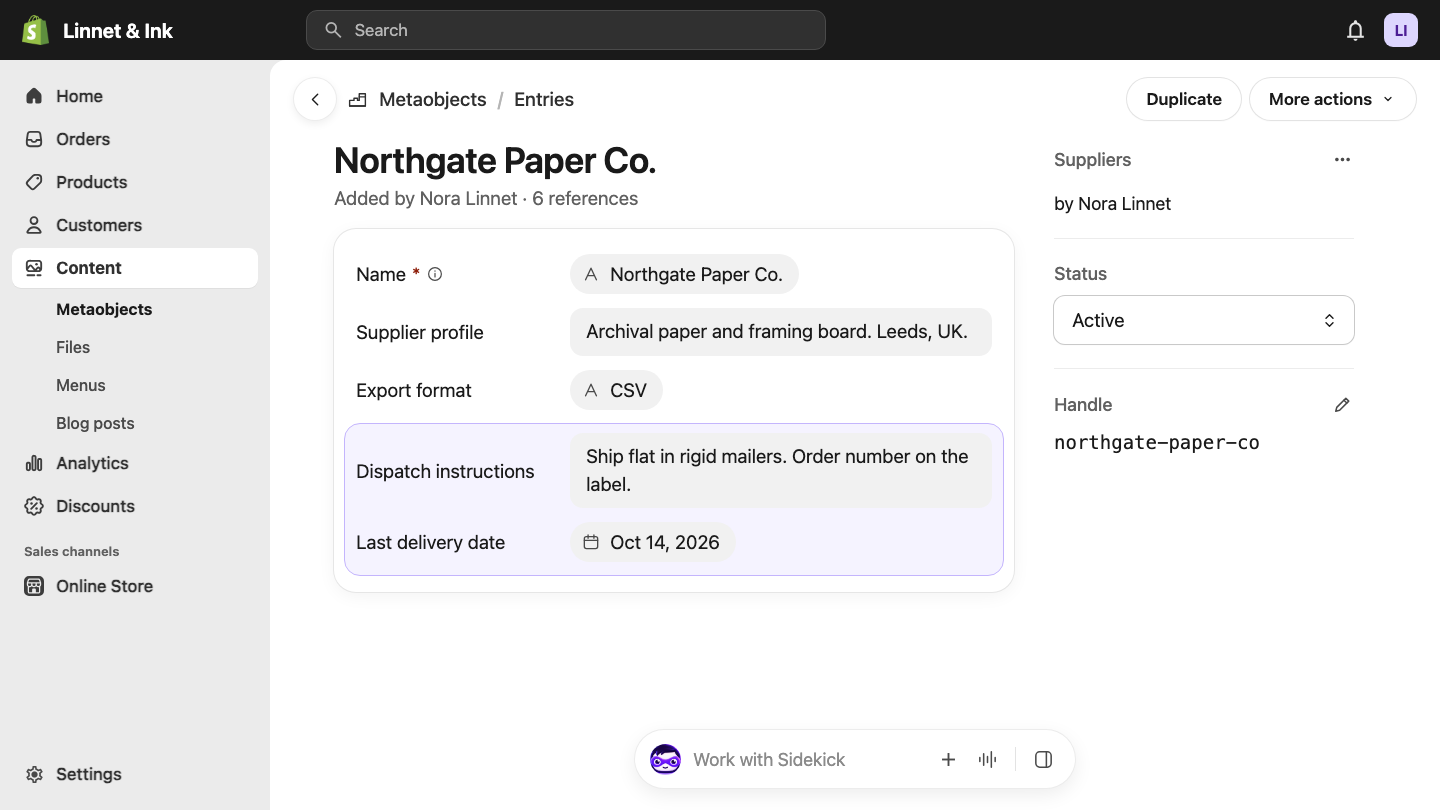
For example, a Suppliers metaobject could hold each supplier's profile, export format, dispatch instructions and last delivery date. Then you add one item for each supplier you work with.
What Problem Do Shopify Metaobjects Solve?
Shopify's built-in data models cover what every store needs. Sometimes your store needs to keep track of something they don't cover.
Back to the brand with 60 artists. It wants to store each artist's name, bio, profile picture and the products they've worked on. An artist isn't a product, so there's no product page to put that on. It isn't a customer or an order either.
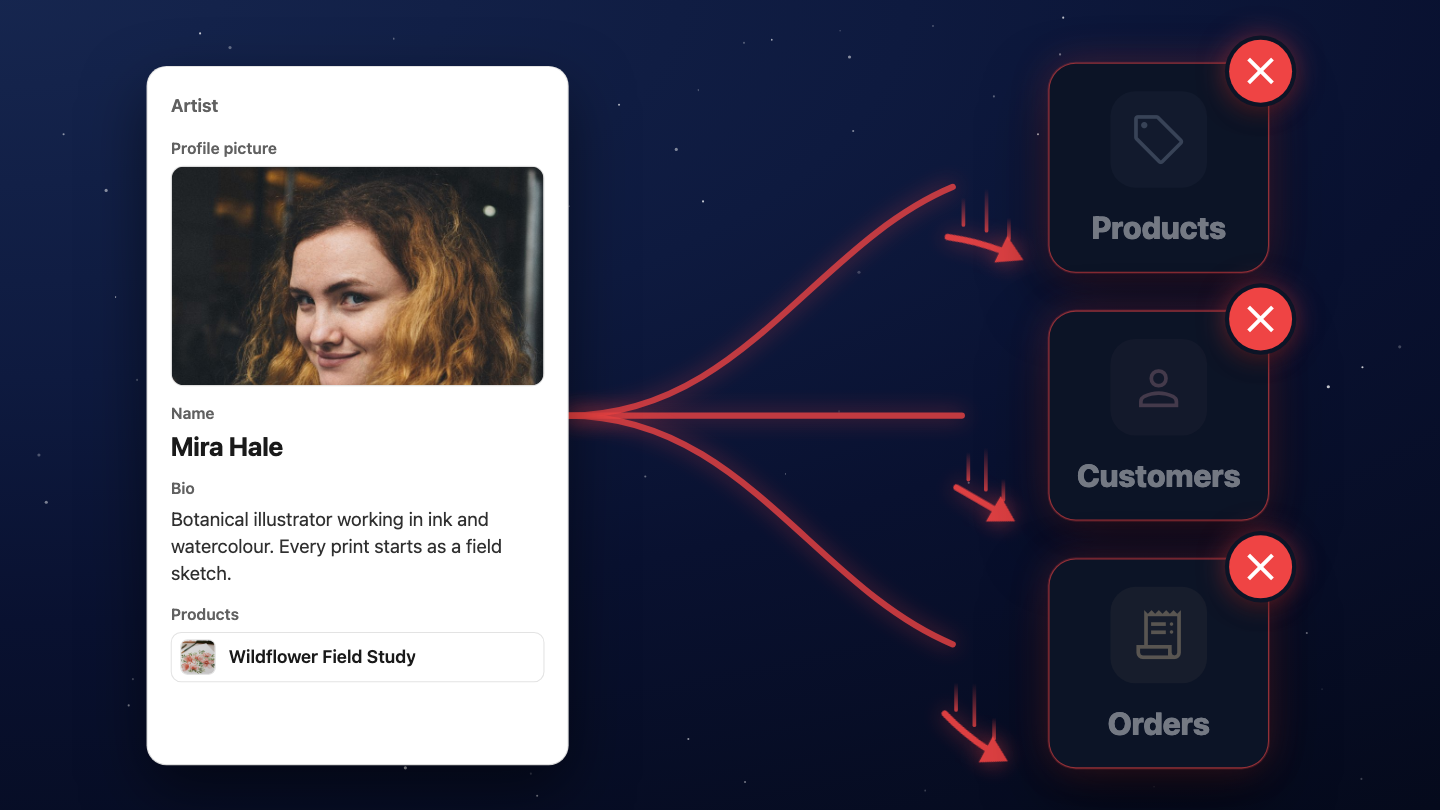
You might reach for a metafield first. As explained in our Shopify metafields guide, a metafield adds a custom field to something Shopify already has, like one more field on a product. That's perfect when a product needs one more value.
But the artist brand doesn't need one more field on a product. It needs a place to store the artist itself. That's what a metaobject gives it: the brand creates an Artists metaobject, and each artist becomes one entry with their own name, bio, picture and products.
Once the artists are stored, the brand also wants to show them: on product pages, on a page per artist, and on one overview page listing every artist. Building 60 pages by hand, and updating each one whenever an artist changes, is a lot of work. With metaobjects, all of those places read the same artist entry, so a change made once shows up everywhere.
Metaobject Definition vs Metaobject vs Metaobject Entry
Three terms sound alike, and the Shopify admin uses all three. The easiest way to keep them apart is a blueprint, a factory, and the products the factory makes.
- The metaobject definition is the blueprint. It sets the rules: the metaobject's name, the fields each entry holds, and the rules for those fields. For Artists, that's a name, a bio, a profile picture and products.
- The metaobject is the factory. It's the custom data model itself, and it makes the entries. An Artists metaobject makes artists.
- A metaobject entry is one product from that factory. One actual artist, like Mira Hale, with her own name, bio and picture filled in.
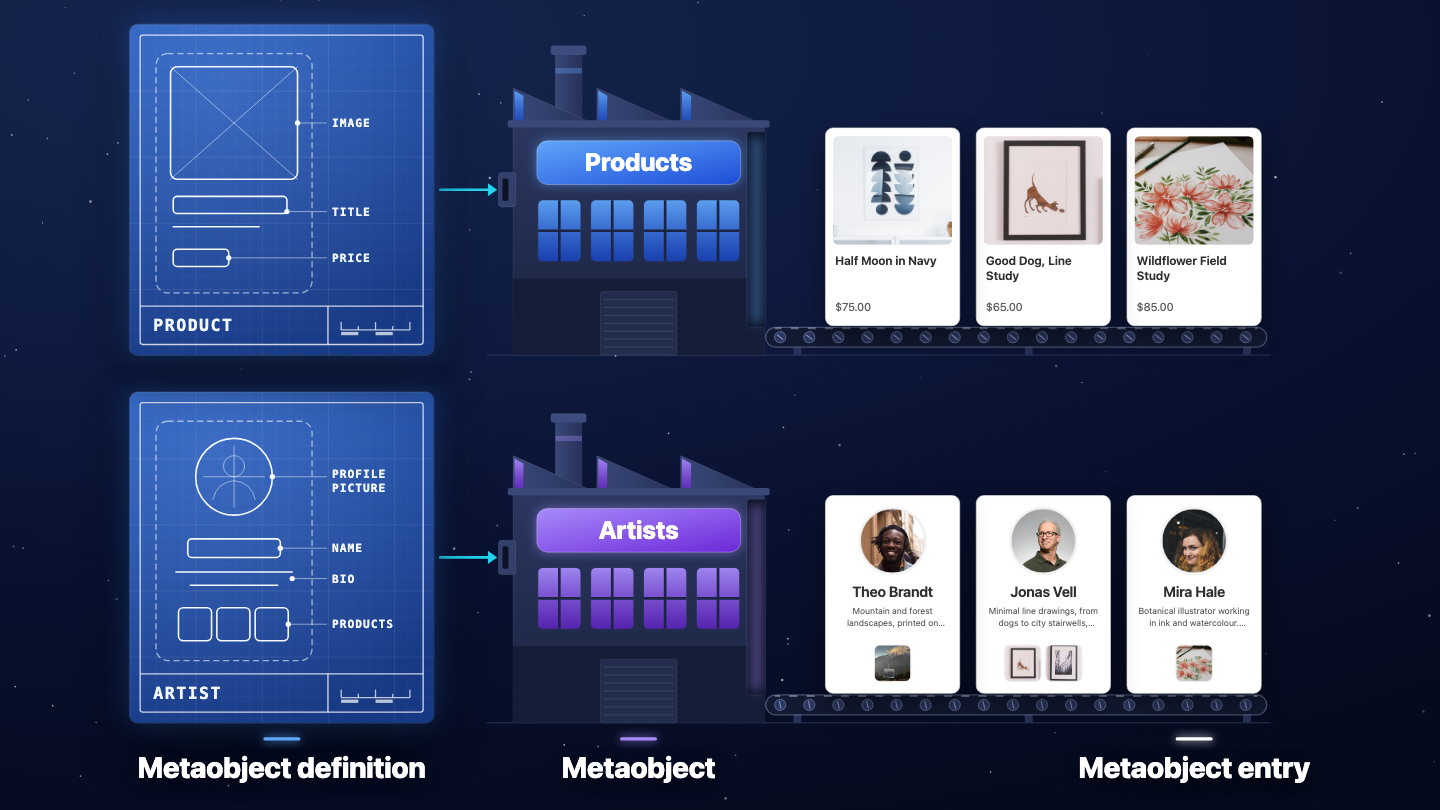
This is the same system Shopify already uses. The Products data model makes individual products. An Artists metaobject makes individual artists.
One thing that trips people up: in Shopify's code and developer docs, a single entry is also called a metaobject. In this post, "metaobject" means the factory, and "entry" means one item it makes.
Shopify Metaobject Examples
Artists are one example. Here are more, split by who gets to see them.
On your store
| Metaobject | Each entry holds |
|---|---|
| Artists | Name, bio, profile picture, and the products they've worked on |
| Product highlights | An icon, a title and a short description, shown on the product page |
| FAQs | A question and its answer, shown in a section on your store |
| Size guides | A size chart, shown on every product that uses it |
| Ingredients | The ingredient's name, what it does and a photo, shown on every product that contains it |
| Influencer profiles | A headline, an image, a description and a profile link |
| Event appearances | The event's name, location, year and a description |
For your team only
| Metaobject | Each entry holds |
|---|---|
| Suppliers | Supplier profile, export format, dispatch instructions, last delivery date |
| Manufacturers | The manufacturer's name and the products they make |
| Warehouse locations | An address and the products stored there |
| Production batches | Batch number, production date, factory, the variants it covers, inspection result, documents |
| Equipment | Model, serial number, purchase date, warranty end date, service notes |
How to Build a Shopify Metaobject
Building a metaobject takes two steps: create the definition, then add entries. Here are the general steps. For a full click-by-click build, see the step-by-step tutorial on creating metaobjects.
Create the Metaobject Definition
- In your Shopify admin, go to Settings > Metafields and metaobjects
- Scroll down to Metaobject definitions and click Add definition
You can also get there from Content > Metaobjects > Add definition.
Then fill in the definition:
- Name is what the metaobject is called, for example "Artists".
- Type is the name Shopify and your theme use to find the metaobject, like
artists. Shopify creates it from the name, and you can change it before you save. - Description is optional. Use it to give your staff context.
- Fields are the details each entry holds. For each field, you choose:
- a label (its name)
- a type, like text, number or file
- whether it holds one value or several
- whether it's required
- optional rules, like a maximum number of characters
- an optional note for your staff
- a key, the name your theme uses to find the field
Below the fields are the options. Two you'll use often:
- Active-draft status lets you keep an entry as a draft until it's ready.
- Publish entries as web pages gives every entry its own page (more on that in use 3).
The info icon next to the options explains each one. Two more matter later: Storefronts API access, which lets the metaobject appear on your store, and Filter or group data in Analytics, which lets you use it in Shopify Reports (see the FAQ).
Last, the display name is the name each entry shows in your admin. Let Shopify create it, or pick a field like the artist's name so entries are easy to find.
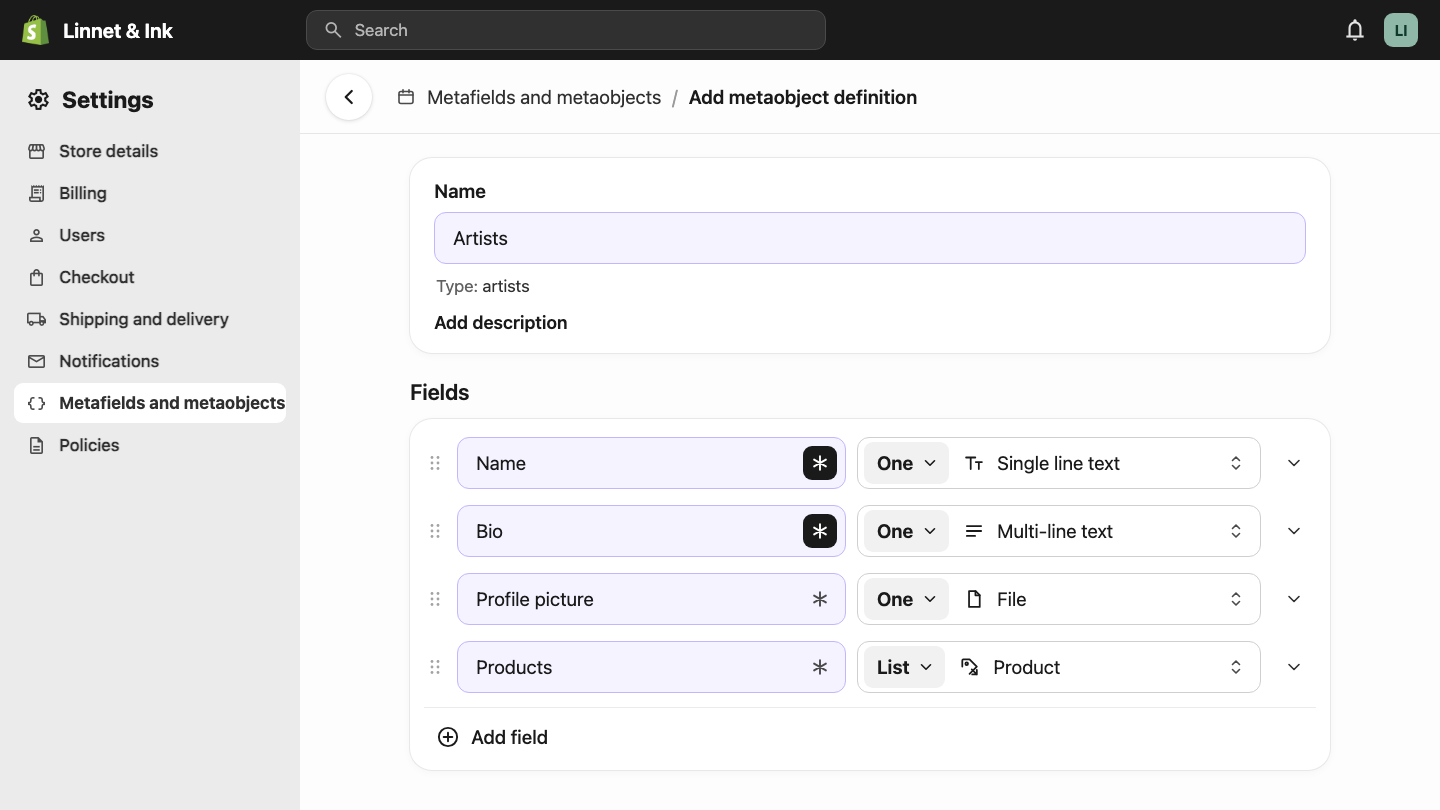
See the Shopify Help Center for every option.
Add Metaobject Entries
Once the definition exists, add entries:
- Go to Content > Metaobjects
- Click your metaobject, for example Artists
- Click Add entry, fill in the fields, and save
If you turned on active-draft status, choose Active to show the entry in your store. Choose Draft to keep it hidden while you work on it.
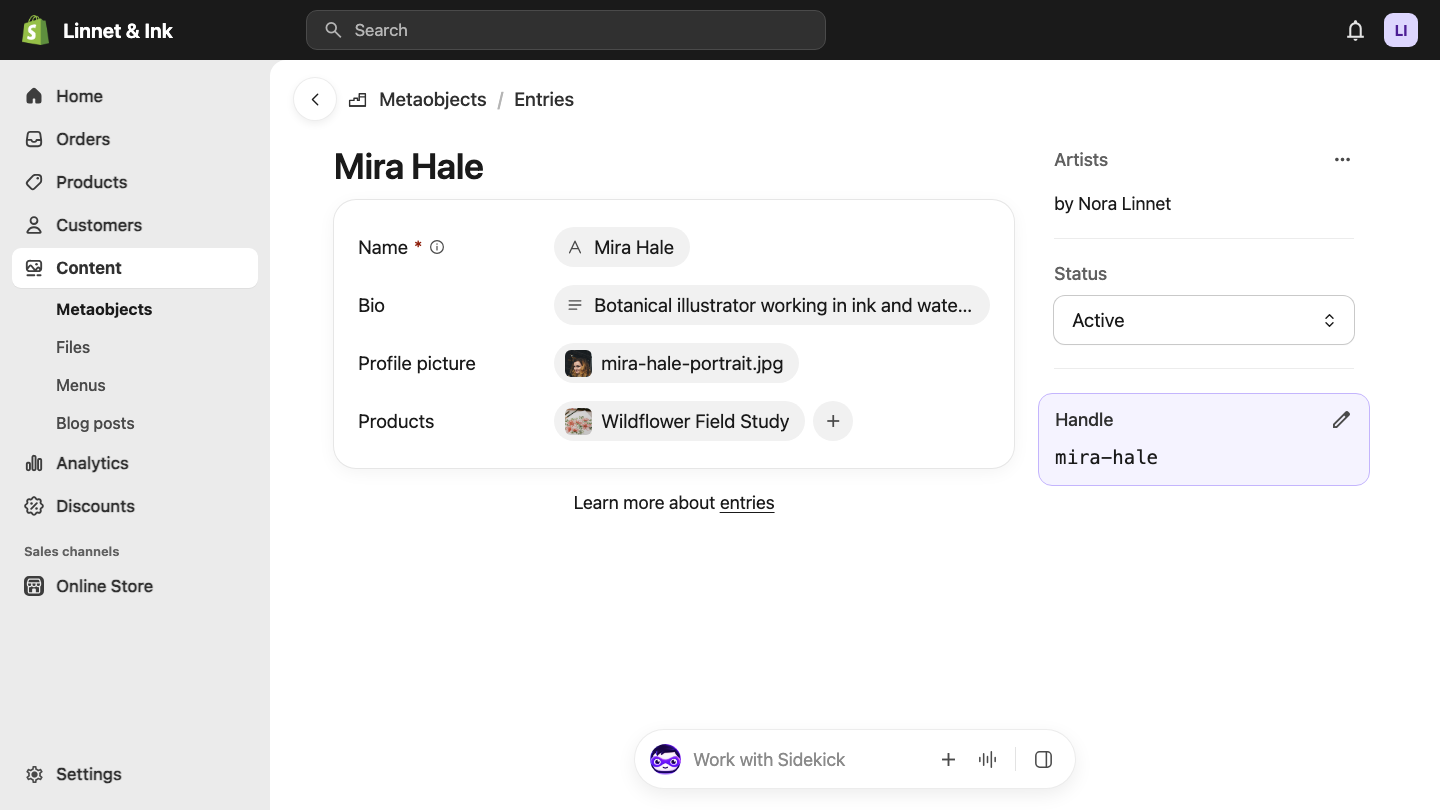
Every entry also gets a handle. It's a short, unique name for the entry, like mira-hale for Mira Hale. Shopify creates it for you, and your theme and web addresses use it to find the entry.
To edit an entry later, click it. To delete one, open it and click More actions > Delete entry, or tick several in the list and delete them all at once. As of writing, one definition can hold up to 1,000,000 entries.
One more thing: if you give a field the type "metaobject" or "mixed reference", an entry can hold other entries inside it.
7 Ways to Use Shopify Metaobjects
This is where metaobjects pay off. You fill in an entry once, and it shows up everywhere you connect it. Change it once, and it changes everywhere.

1. Connect a Metaobject Entry to Your Products
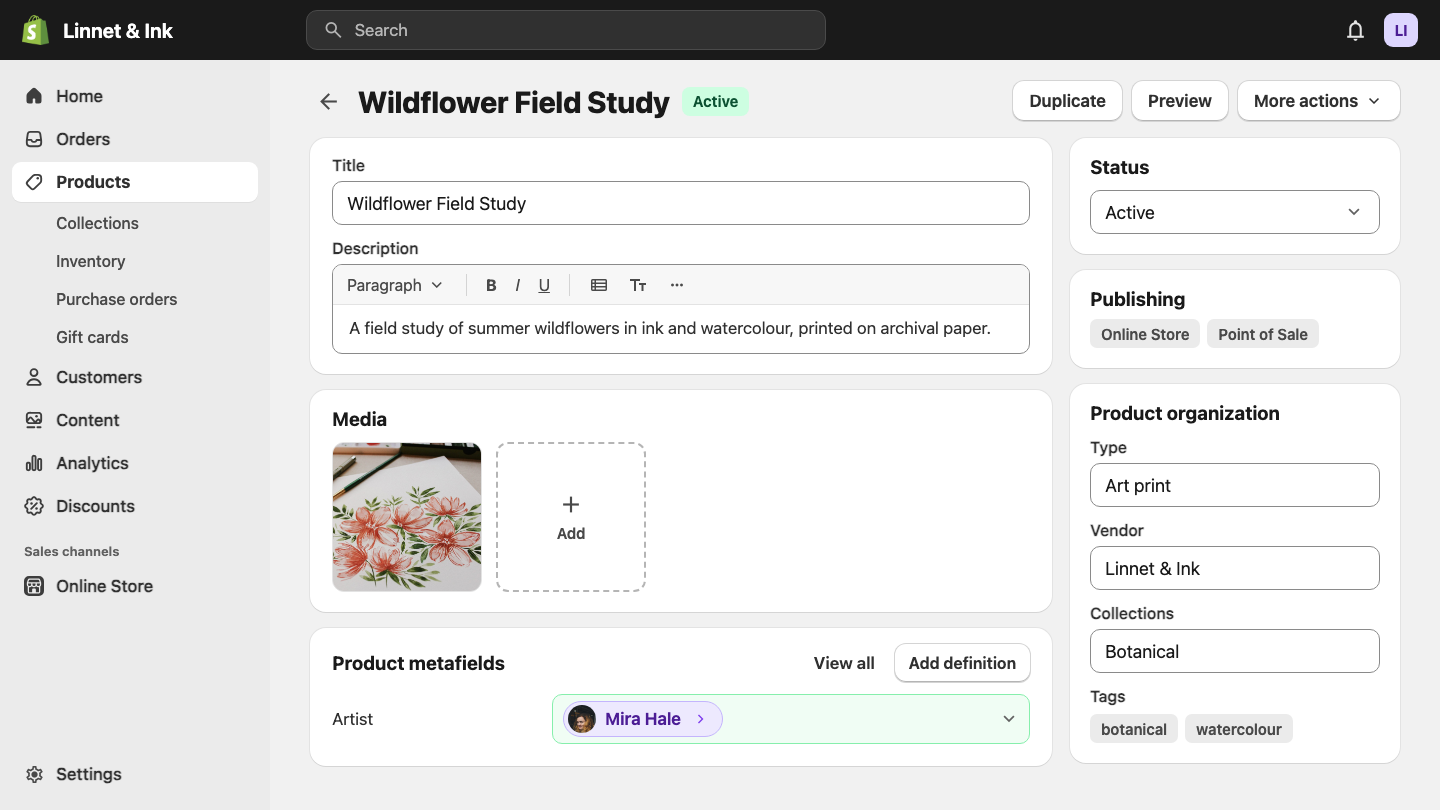
You connect an entry to a product with a metafield:
- Create a product metafield definition and set its type to Metaobject reference
- Point the reference at your metaobject, for example Artists
- Open a product and pick its artist
The product and the artist are now connected. The metafield is only the link. All the artist's information stays on the entry. Shopify's Help Center has the details.
2. Show Metaobjects on Your Store Without Code
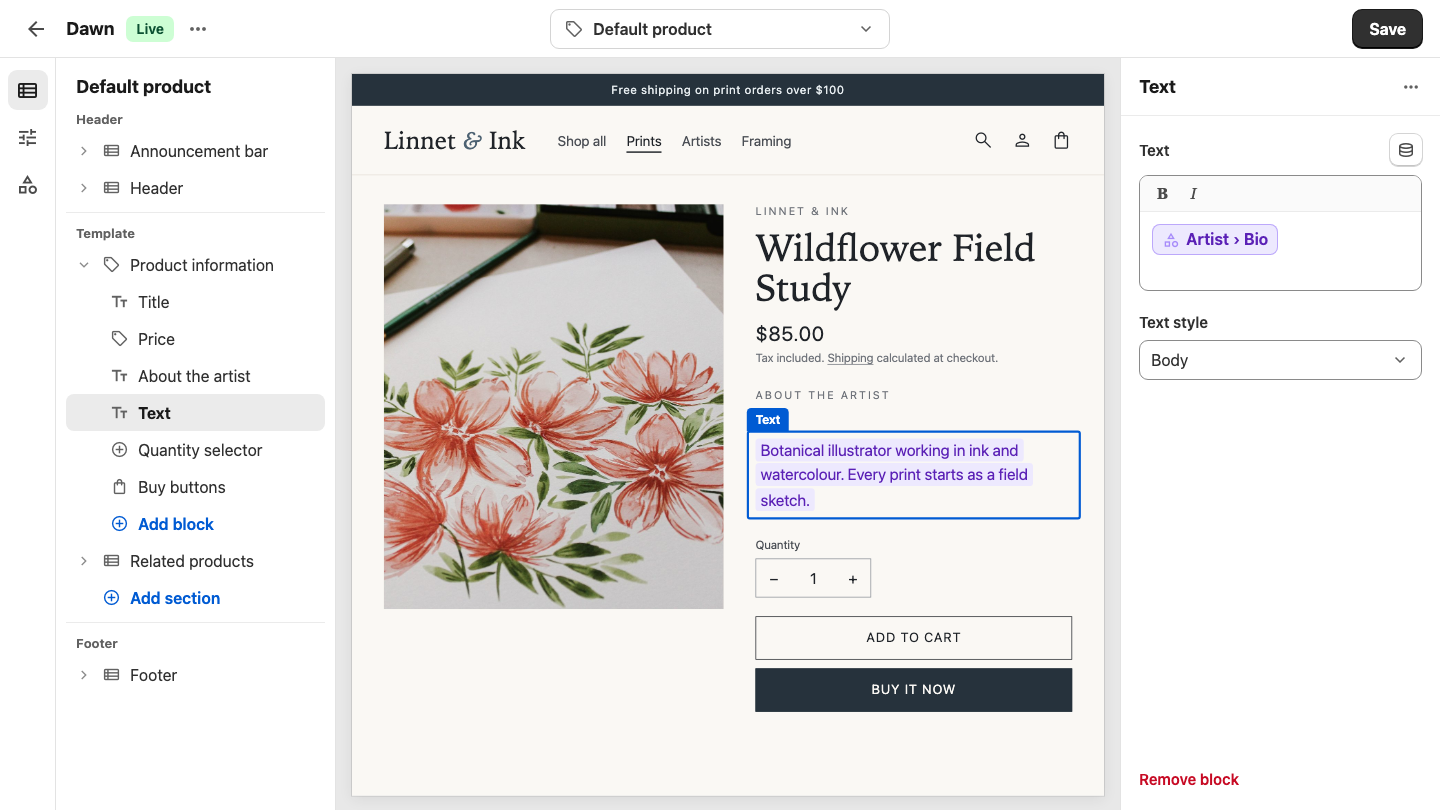
Once an artist is connected to a product, you can show the artist's fields on the product page from the theme editor:
- Open the theme editor on a product page
- Select a section or block, and click the Connect dynamic source icon on one of its settings
- Pick the product's Artist metafield, then the field you want, like the bio
Connecting a dynamic source means the setting shows your saved data instead of text you type in. Pick a setting that matches the field: a text setting for the bio, an image setting for the picture. This only works if your theme's sections support it, and if Storefronts API access is on in the metaobject definition. There's more in the Shopify Help Center.
Update Mira Hale's bio in Content > Metaobjects later, and every product page showing it updates too.
3. Give Every Entry Its Own Page with Metaobject Pages
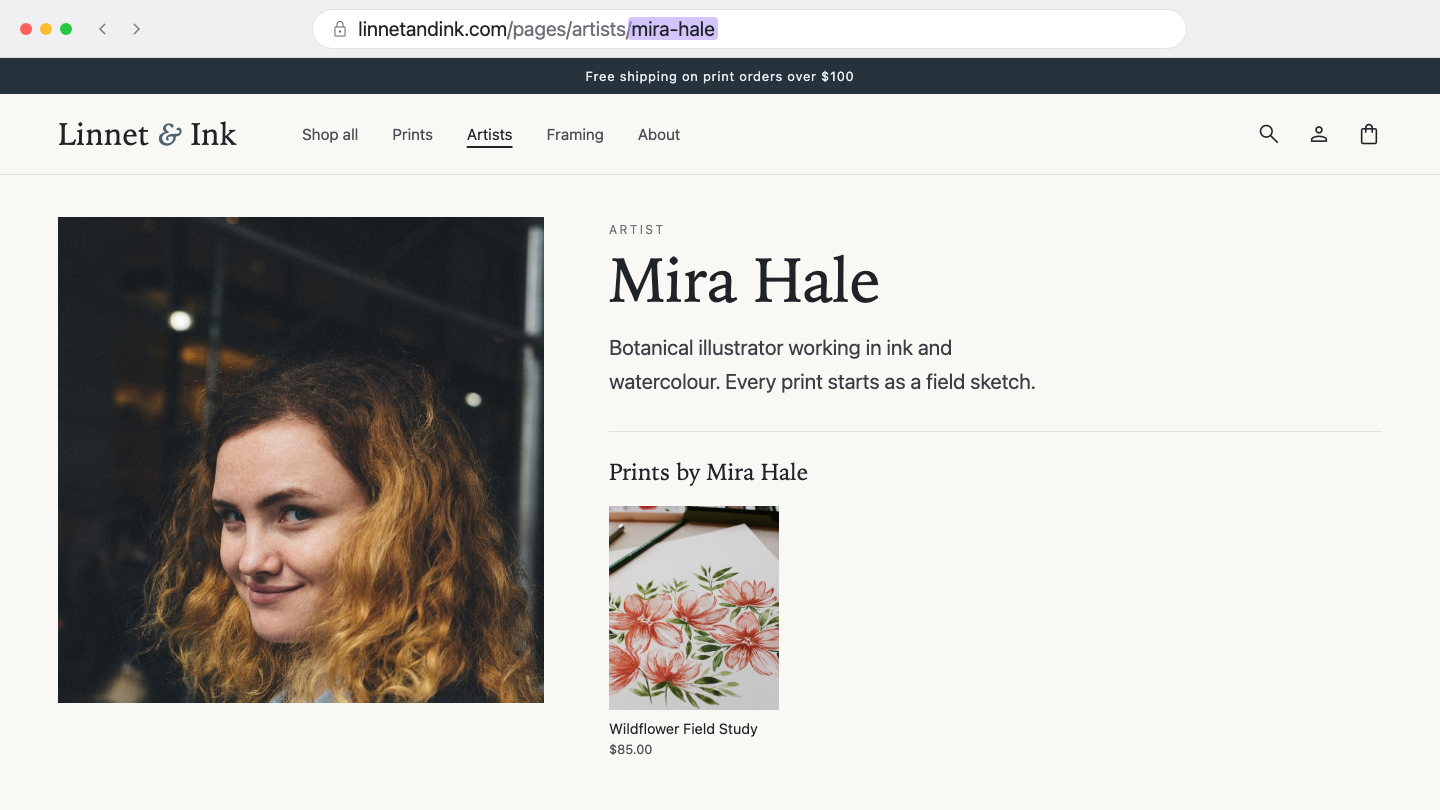
Metaobject pages give every entry its own web page and URL. First, turn them on in the definition:
- Open the metaobject definition and check that Storefronts API access is on
- Turn on Publish entries as web pages and save
Then create a metaobject template. This is the page design every entry uses, and you build it once in the theme editor:
- Go to Online Store and click Edit theme
- Open the page selector at the top, click Create metaobject template, and choose your metaobject
- Add sections and blocks, connect them to the entry's fields with dynamic sources, and save
Each page's web address ends with the entry's handle, and the definition decides how the rest of the address looks. So 60 artists get 60 artist pages. Each one is filled with the name, bio and picture you already saved, and you don't build a single page by hand.
4. Build an Overview Page of All Entries
Artist pages are useful, but you'll also want one page that lists every artist, like a collection page for artists.
Create a page with a section that pulls in all the artist entries and shows each one's picture and name.
Your theme needs a section that can list metaobject entries. If it doesn't have one, a developer can build it. The developer section below shows how.

So now the same entries power the product pages, the artist pages and the overview page.
5. Let Customers Filter Products by Metaobject
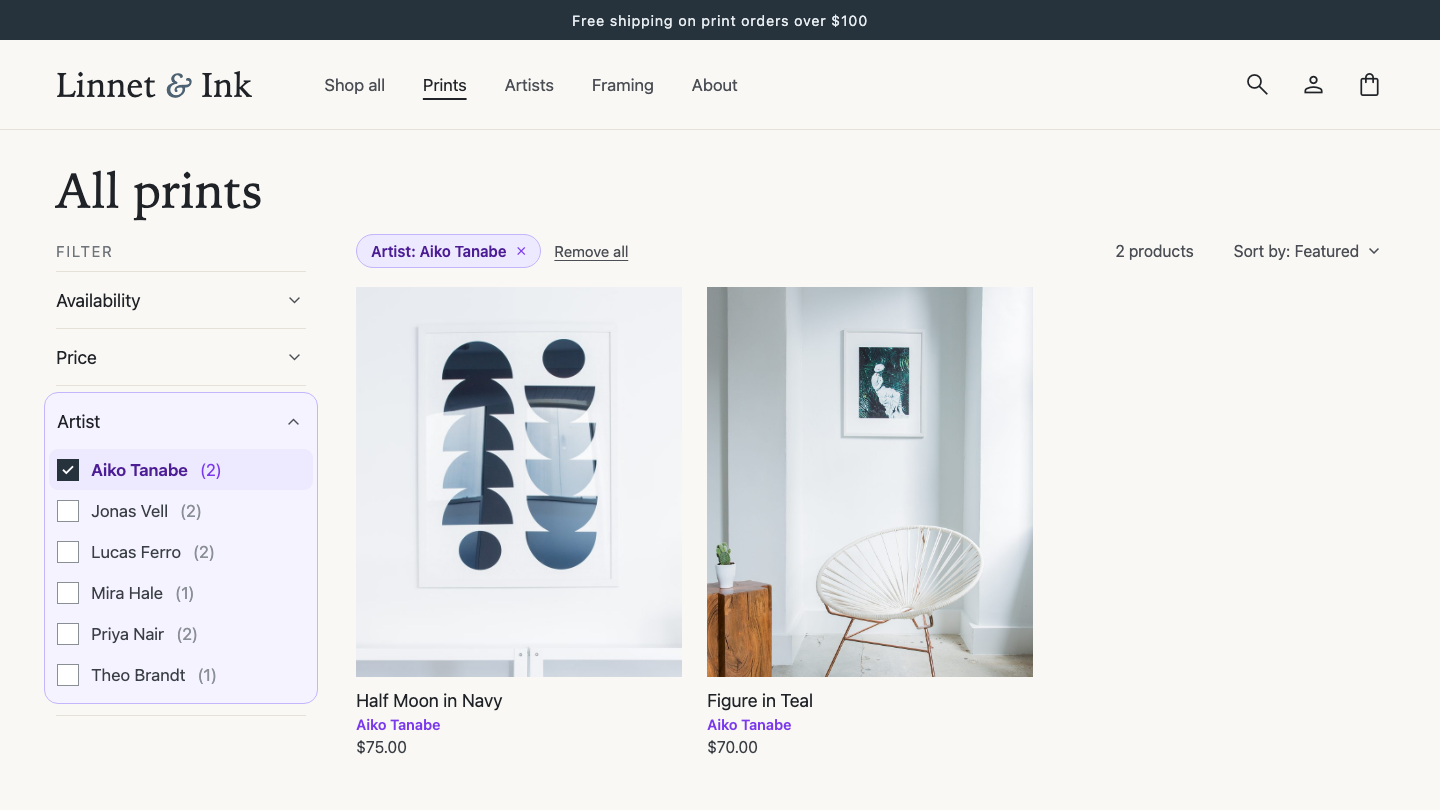
The Artist metafield on your products can also become a filter on your collection pages:
- Install the Shopify Search & Discovery app
- Go to Filters
- Add a filter and choose the Artist metafield as its source
A collection page now has an Artist filter, and customers can narrow the products down to one artist.
6. Store Internal Information in Metaobjects
Metaobjects don't have to be shown to customers at all.
Take a Suppliers metaobject. Each supplier entry holds the supplier's profile, export format, dispatch instructions and last delivery date. Each product is connected to its supplier with a metafield, the same way products are connected to artists.
When staff need the dispatch instructions or the last delivery date, they open the supplier entry in the admin. To keep it off your store, leave Storefronts API access off in the definition. That's the option that lets a metaobject appear on your store.
7. Use Metaobjects in Liquid Code
If you or your developer work on your theme's code, Liquid (Shopify's theme language) can read an entry directly. It finds the entry by its type, its handle and the field key:
{{ metaobjects.artists.mira-hale.bio.value }}That's metaobjects, then the type (artists), the entry's handle (mira-hale), the field key (bio), and .value to get the value.
On a metaobject page, the entry is simply called metaobject:
{{ metaobject.bio.value }}This is why the type, the handle and the field keys matter: they're the address your code uses to find the information. It's also why changing a handle can break your theme. And Liquid only reads Active entries, so an entry set to draft won't show up. Shopify's Liquid reference has the full details.
For Developers: Metaobject Section Settings, Loops, App-Owned Metaobjects and Functions
Store owners can skip this one. If you're a developer, here are a few things worth knowing.
Section settings. The metaobject setting lets a merchant pick one entry in the theme editor. The metaobject_list setting lets them pick several (Shopify developer docs). In both, the metaobject type is fixed in the section schema (see our Shopify sections guide):
{
  "type": "metaobject_list",
  "id": "artists",
  "label": "Artists",
  "metaobject_type": "artists"
}
Looping over entries. This is how an overview section lists every artist without a merchant picking them:
{% for artist in metaobjects.artists.values %}
  {{ artist.name.value }}
{% endfor %}
As of writing, a loop returns up to 50 entries without pagination. Our brand has 60 artists, so wrap the loop in the paginate tag, which allows up to 250 entries per page. You can also narrow the loop with array filters like where.
App-owned metaobjects. Apps can create their own app-owned metaobject definitions and store app data in them (Shopify's docs). A knowledge base app is a good example. The merchant can still see those entries in the admin.
Shopify Functions. A Shopify Function can read app-owned metaobjects, but not metaobjects the merchant created. We tested this with an app-owned Product Bundle metaobject. Each bundle entry holds a discount, and the merchant creates and edits the bundles. When a bundle's products were in the cart, the Function read the bundle entry and the discount applied.
Limits, as of writing (Shopify's limits page):
- A Liquid loop returns 50 entries without the
paginatetag, and up to 250 per page with it - Merchant-owned definitions: 128 on Basic, Shopify and Advanced plans, 256 on Plus
- App-owned definitions: up to 128 per installed app
- Up to 40 fields per definition
- Up to 1,000,000 entries per definition
Metaobjects vs Metafields: What's the Difference?
A metafield adds a field to something Shopify already has. A metaobject creates a new kind of thing.
| Metafields | Metaobjects | |
|---|---|---|
| What it creates | A new field on something Shopify already has, like a product, order or customer | A new data model, with its own entries |
| What it holds | One value, or a list of values | A whole set of details in each entry |
| Use it when | That product, order or customer needs one more piece of information | You need a group of details you manage together and reuse, like an artist, a size guide or a supplier |
| Example | A Warehouse location field on a product | A Suppliers metaobject with each supplier's contact details, last shipment date and the products they supply |
They also work together. For an artist, use a metaobject. For the link between a product and that artist, use a metafield. Use 1 above is exactly that.
For more, see everything you can do with Shopify metafields.
How to Bulk Edit and Import Metaobject Entries
As of writing, the Shopify admin has no built-in way to edit many metaobject entries at once. Adding entries one at a time is fine for a handful, but not for hundreds of artists or a supplier list you already keep in a spreadsheet.
To edit or import many entries at once, use an app:
- Matrixify imports and exports metaobject entries as a spreadsheet.
- Structa Metaobject Bulk Editor lets you edit entries in a spreadsheet-style table, with CSV import and export.
Developers can also update entries in bulk through Shopify's API.
Here's how a spreadsheet import works with Matrixify:
- Create the metaobject definition first. Entries can only be imported into a definition that already exists.
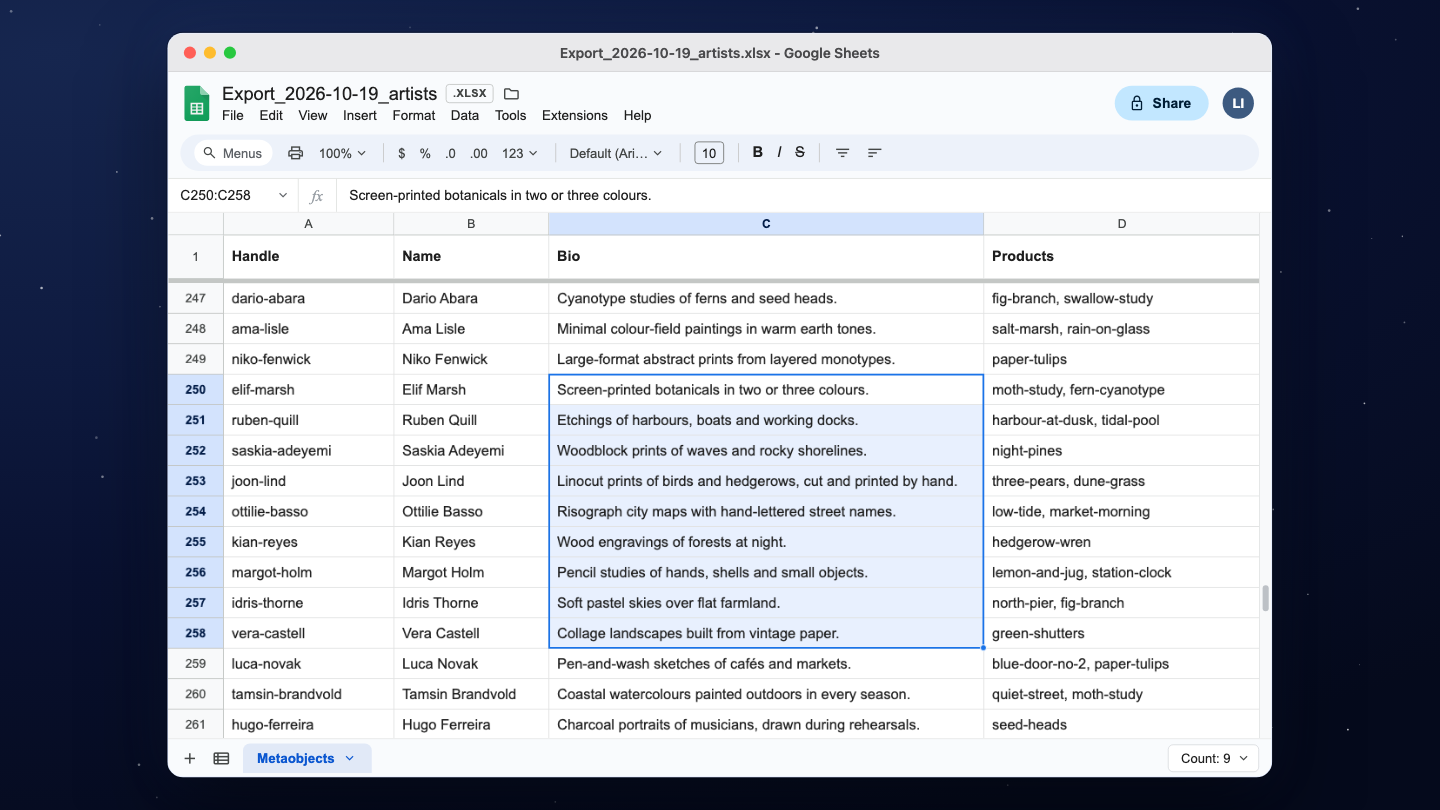
- Export your existing entries. That gives you a backup, plus the columns Matrixify uses to recognise each entry.
- Edit the values, or add new rows for new entries.
- Import the file. Matrixify updates the entries it recognises and creates the new ones.
Matrixify's documentation has a demo file you can start from.
AI tools can edit metaobjects too. For a small change you can check yourself, that's fine. On a large store, I'd be careful. Big changes are hard to check, so export a backup before you start.
Final Thoughts
Shopify metaobjects are for the information Shopify doesn't have a place for yet.
You build the definition once and add an entry for each artist, supplier or location. Then you use that same entry wherever you need it: product pages, its own page, an overview page, filters, your team's admin, and your theme code.
Start with one. Pick the details your store keeps typing into product descriptions or a spreadsheet. Build a definition for them and add a few entries. Then connect one to a product, and see how many of the seven uses above that same entry can cover.
Cheers,
Jan
Shopify Metaobjects FAQ
What are metaobjects in Shopify?
Metaobjects are custom data models you create inside your Shopify store. You decide what each item holds, then add as many entries as you need. For example, one entry per artist, supplier or warehouse.
What's the difference between metafields and metaobjects?
A metafield adds one field to something Shopify already has, like a product, and holds one value or a list. A metaobject creates a new kind of thing, and each entry holds a whole set of details. They also work together: a metafield is how you connect an entry to a product.
What's the difference between a metaobject definition and a metaobject entry?
The definition is the blueprint: the metaobject's name, its fields and their rules. An entry is one item made from it, like one artist with their own name, bio and picture filled in.
What can you use Shopify metaobjects for?
Common examples are artists, product highlights, FAQs, size guides, ingredients, suppliers, warehouses and production batches. You can show them on product pages, give each entry its own page, list them all on one page, let customers filter by them, or keep them for your team only.
Do I need to code to use Shopify metaobjects?
No. You create definitions and entries in the admin and connect them to products with a metafield. If your theme supports it, you show them on your store from the theme editor. The one thing that may need a developer is a page that lists every entry, if your theme can't do it.
How do I show metaobjects on my online store?
First, check that Storefronts API access is on in the metaobject definition. Connect the entry to a product with a metafield. Then, in the theme editor, use Connect dynamic source to show its fields. To give every entry its own page, turn on Publish entries as web pages and create a metaobject template in the theme editor.
Can I import metaobjects into Shopify?
Not with Shopify's built-in tools, as of writing. Use an app like Matrixify or Structa Metaobject Bulk Editor to import, export and bulk edit entries as a spreadsheet. Create the metaobject definition first, because entries can only be imported into a definition that exists.
Can I use metaobjects in Shopify Reports?
Yes. Turn on Filter or group data in Analytics in the metaobject definition. Then connect the metaobject to your products, variants, customers or orders with a metaobject reference metafield. Its supported fields show up as dimensions and filters in your reports, so you could group sales by artist, for example. Fields reached through a mixed reference metafield don't work. See the Shopify Help Center for the details.
How many metaobjects can I have in Shopify?
As of writing, you can have up to 128 metaobject definitions on the Basic, Shopify and Advanced plans, and 256 on Plus. Each definition can have up to 40 fields and hold up to 1,000,000 entries.
How do I edit or delete a metaobject entry?
Go to Content > Metaobjects, click the metaobject, then click the entry to edit it. To delete it, click More actions > Delete entry, or tick several entries in the list and delete them together.